Interfaces/Plugins
This page of iGene displays a list of all the interfaces and plugins that are stored in the system. It is possible to view the details of each interface or plugin, and to edit the configuration. Each plugin would usually be a specific request to the developers in Genial, separate to what comes initially packaged within the system. There are four tabs on this page: Plugins/Feeds, Connections, Messages, and Actions.
Plugins/Feeds
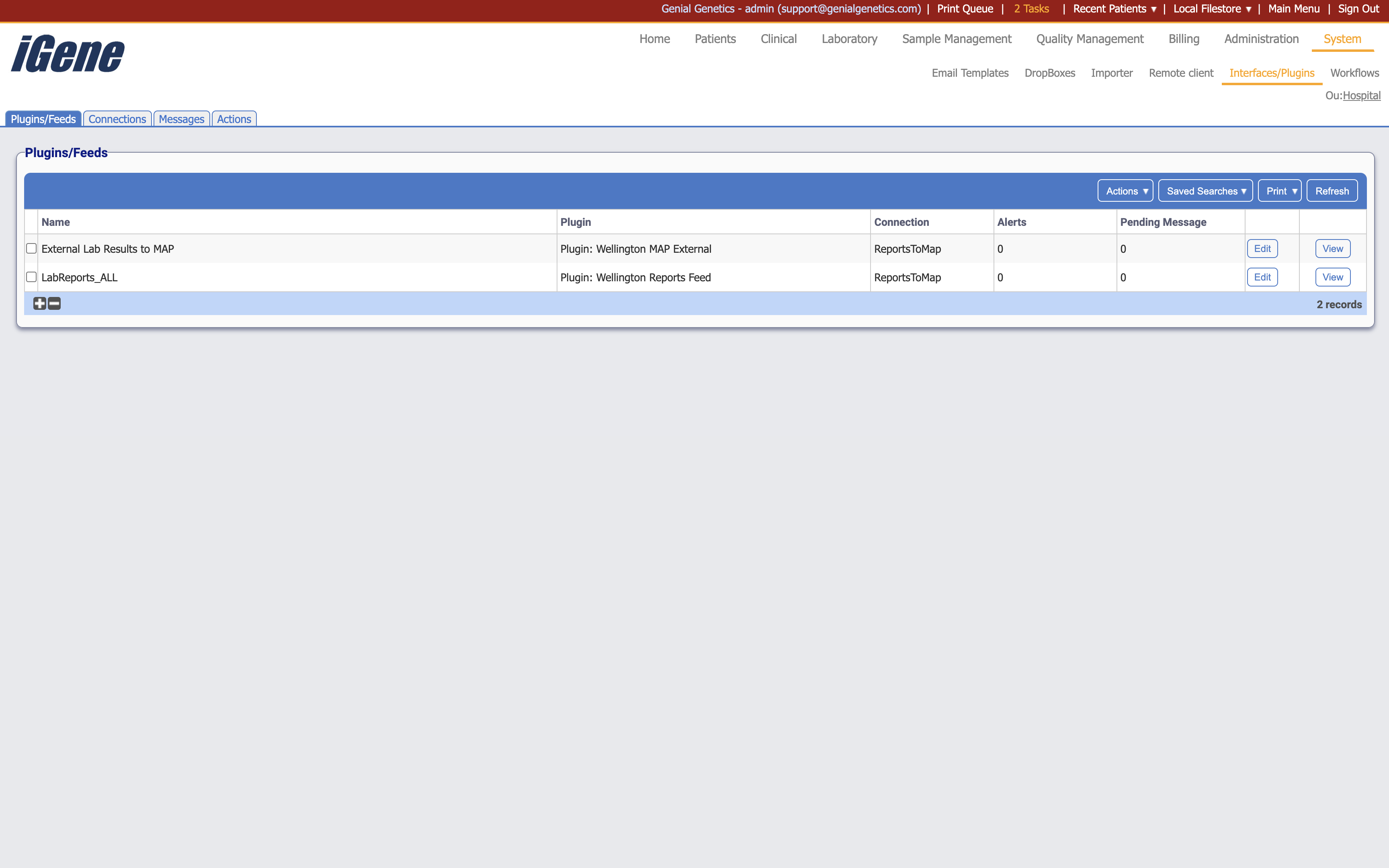
Table Columns
- Name - The name of the interface or plugin within the system.
- Plugin The name of the plugin that was developed by Genial.
- Connection - The connection that the interface or plugin is using.
- Alerts - The number of alerts that have been generated by the interface or plugin.
- Pending Messages - The number of messages that are pending to be sent by the interface or plugin.
- Edit - A link to open a page with details of the interface or plugin. The details can be edited here.
- View - A link to the page where all logs for the interface or plugin can be viewed.
Additional actions
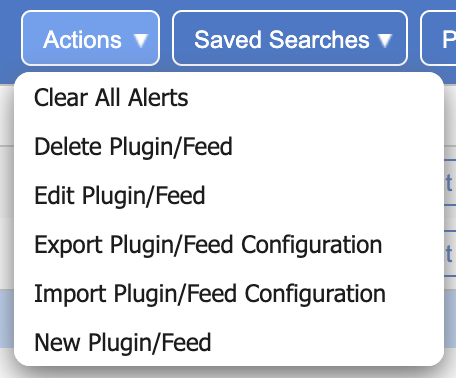
- Clear All Alerts - This will clear all alerts that have been generated by the interface or plugin.
- Delete Plugin/Feed - This will remove the interface or plugin from the list. If an interface or plugin is removed, it will no longer be able to send messages or alerts.
- Edit Plugin/Feed - This will open a page to edit the interface or plugin.
- Export Plugin/Feed Configuration - This will export the interface or plugin as a downloadable file.
- Import Plugin/Feed Configuration - This will import a previously exported interface or plugin configuration file.
- New Plugin/Feed - This will open a page to create a new interface or plugin.
Connections
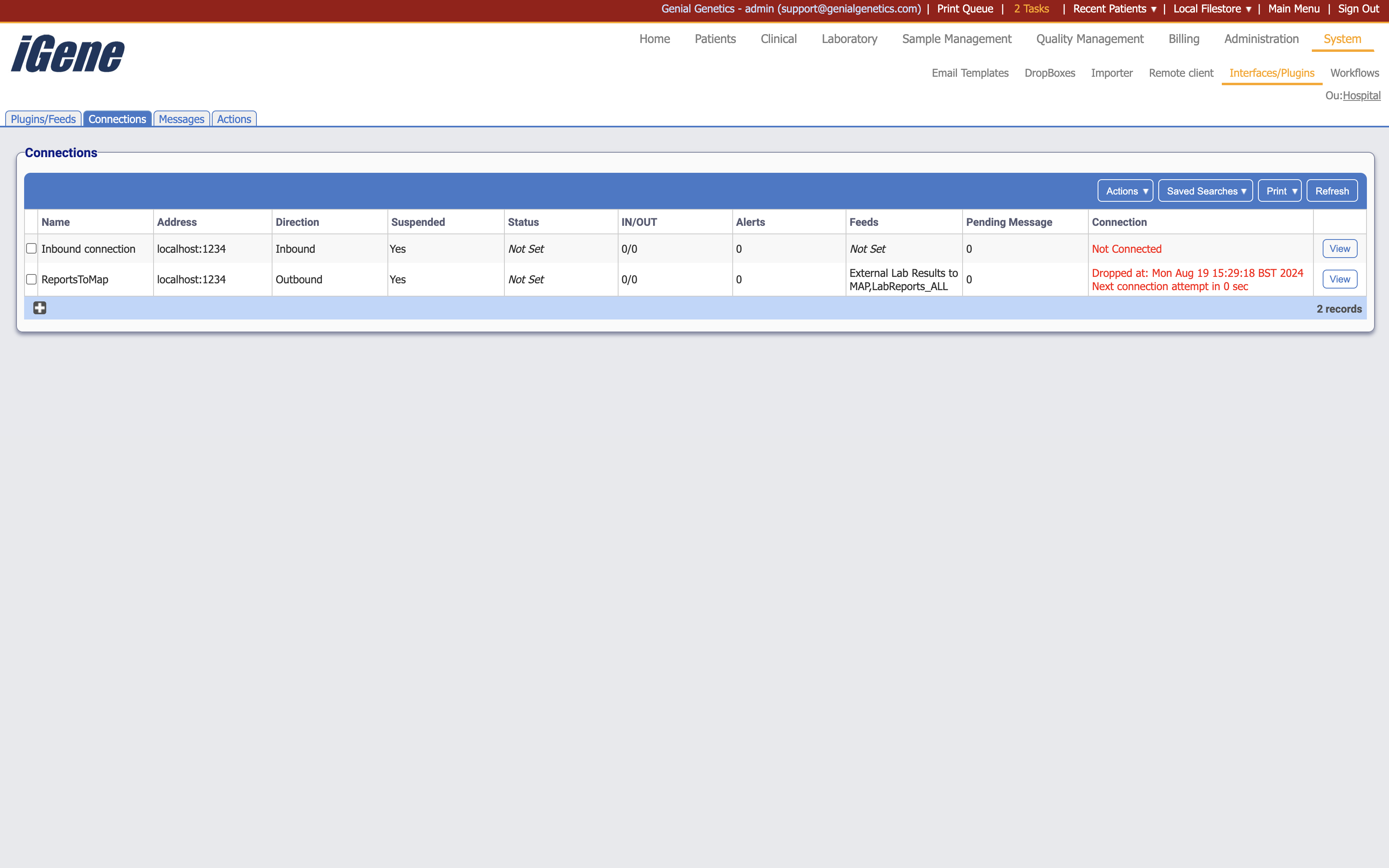
Table Columns
- Name - The name of the connection within the system.
- Address - The address of the connection.
- Direction - The direction of the connection. This will indicate if the connection is inbound or outbound.
- Suspended - Whether the connection is suspended or not.
- Status - The status of the connection. This will indicate if the connection is active or inactive.
- IN/OUT - The number of messages that have been sent in or out of the connection.
- Alerts - The number of alerts that have been generated by the connection.
- Feeds - The names of the feeds that are using the connection.
- Pending Messages - The number of messages that are pending to be sent by the connection.
- Connection - The current status of the connection.
- View - A link to view the logs for the connection.
Additional actions
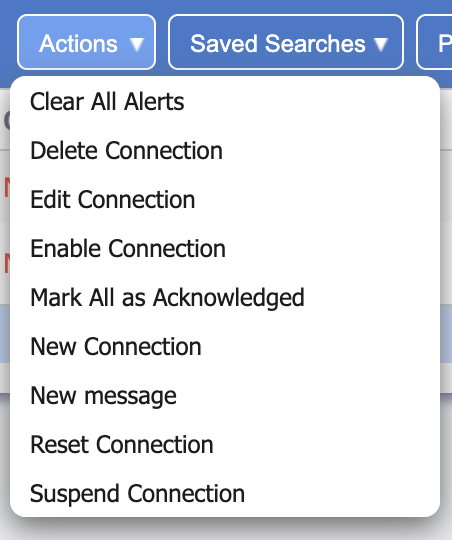
- Clear All Alerts - This will clear all alerts that have been generated by the connection.
- Delete Connection - This will remove the connection from the list. If a connection is removed, it will no longer be able to send messages or alerts.
- Edit Connection - This will open a page to edit the connection.
- Enable Connection - This will enable the connection. If a connection is disabled, it will not be able to send messages or alerts.
- Mark All As Acknowledged - This will mark all alerts as acknowledged.
- New Connection - This will open a page to create a new connection.
- New Message - This will open a page to create a new message.
- Reset Connection - This will reset the connection. This is useful if the connection is not working correctly.
- Suspend Connection - This will suspend the connection. If a connection is suspended, it will not be able to send messages or alerts.
Messages
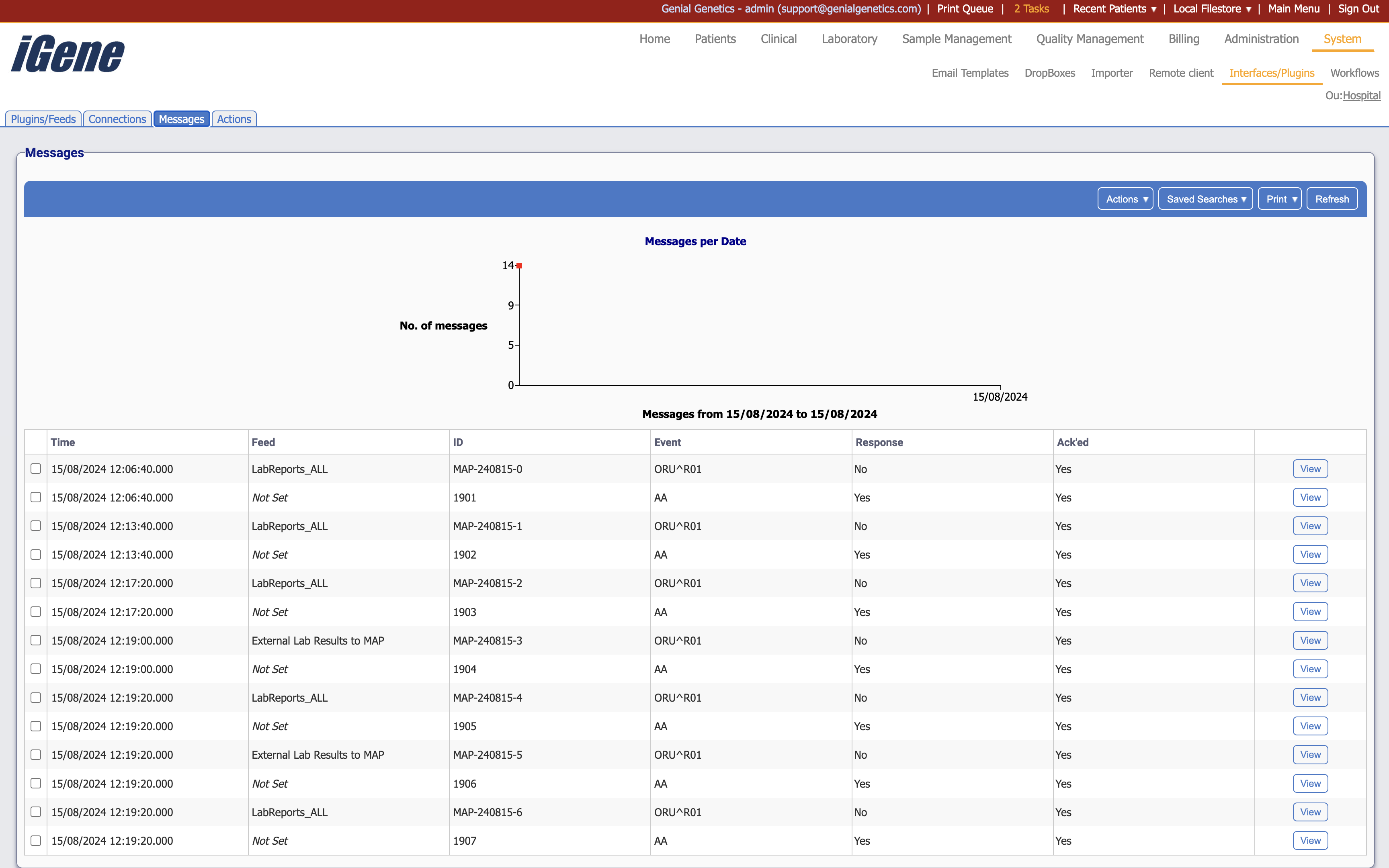
Table Columns
- Time - The time the message was sent.
- Feed - The name of the feed that sent the message.
- ID - The ID of the message.
- Event - The event that triggered the message.
- Response - The response to the message.
- Ack’ed - Whether the message has been acknowledged or not.
- View - A link to view the details of the message.
Additional actions
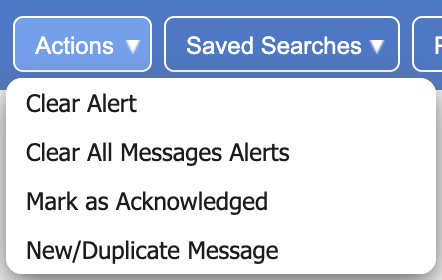
- Clear Alert - This will clear the alert that has been generated by the message.
- Clear All Messages Alerts - This will clear all alerts that have been generated by the messages.
- Mark As Acknowledged - This will mark the message as acknowledged.
- New/Duplicate Message - This will open a page to create a new message, or duplicate the message.
Actions
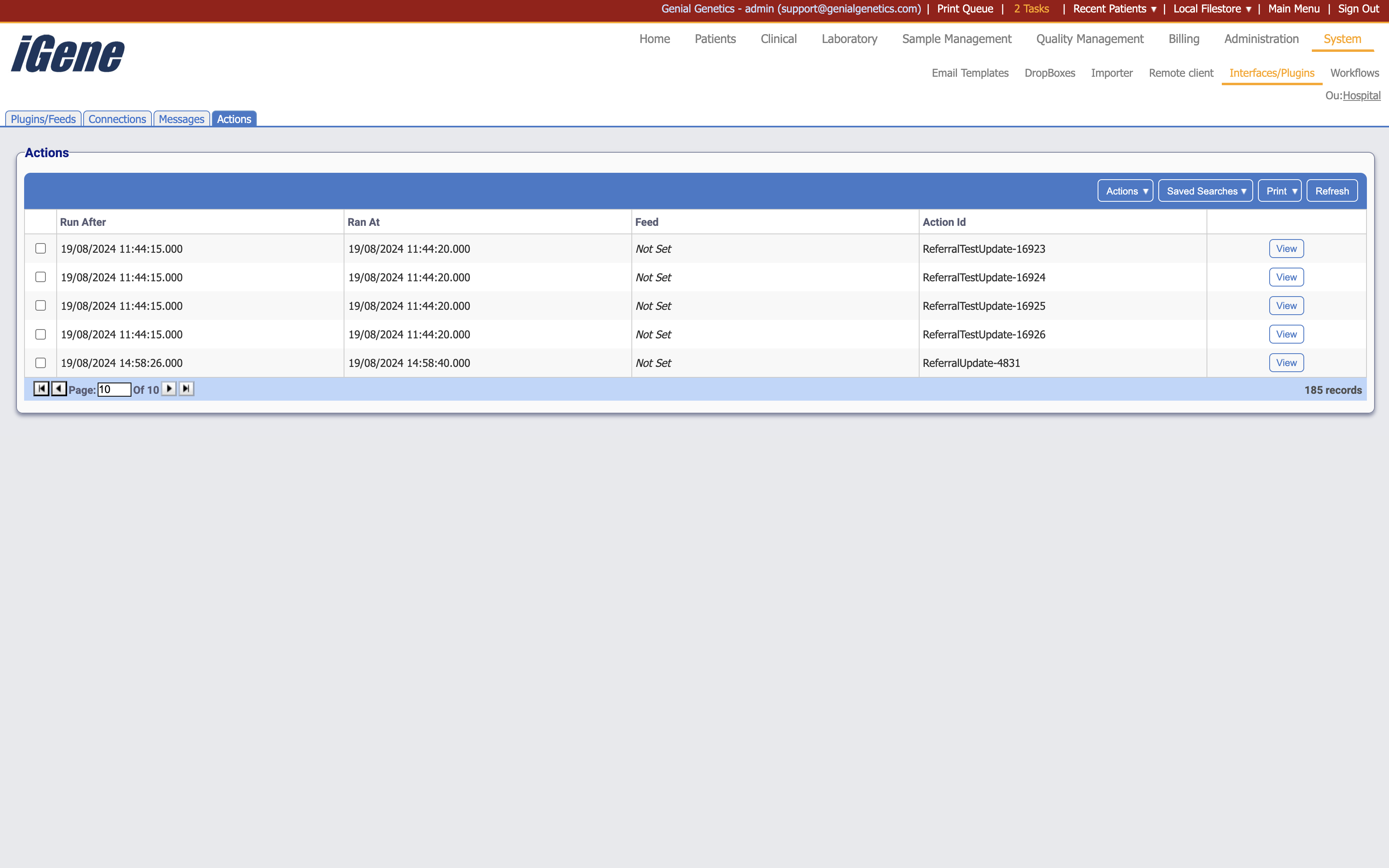
Table Columns
- Run After - The time the action will run after.
- Ran At - The time the action ran.
- Feed - The name of the feed that the action is associated with.
- Action ID - The ID of the action.
- View - A link to view the details of the action.
Additional actions
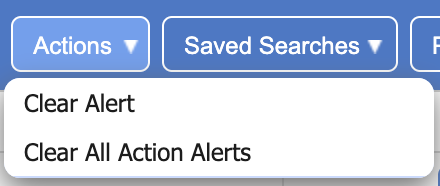
- Clear Alert - This will clear the alert that has been generated by the action.
- Clear All Actions Alerts - This will clear all alerts that have been generated by the actions.