Dropboxes
This page of iGene displays a list of all the dropboxes that are stored in the system. A dropbox allows for importing data into iGene from folders on the user’s file system automatically. It is possible to view the details of each dropbox, and to edit the dropbox.
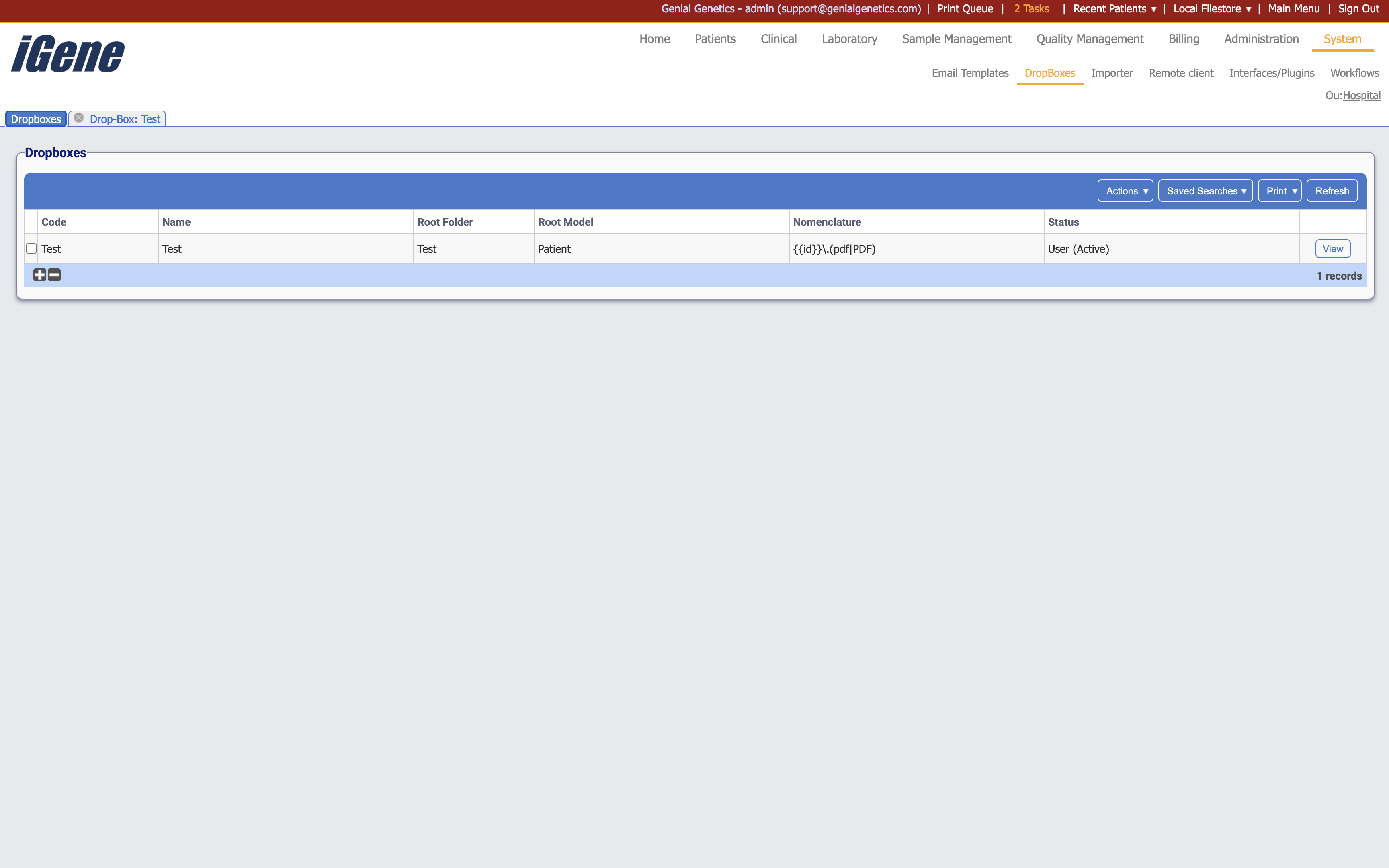
Table Columns
- Code - A unique code for the dropbox.
- Name - The name of the dropbox.
- Root Folder - The root folder of the dropbox.
- Nomenclature - The nomenclature of the dropbox.
- Status - The status of the dropbox. This will indicate if the dropbox is active or inactive.
- View - A link to open a page with details of the dropbox. The details can be edited here.
Additional actions
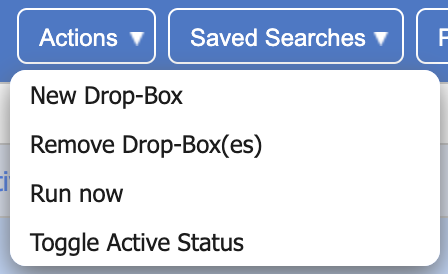
- New Drop-Box - This will open a page to create a new dropbox.
- Remove Drop-Box(es) - This will remove the dropbox(es) from the list. If a dropbox is removed, it will no longer be able to import data into iGene.
- Run Now - This will run the dropbox immediately. This is useful if the dropbox is set to run at a specific time, but you want to run it immediately.
- Toggle Active Status - This will toggle the active status of the selected dropboxes. If a dropbox is inactive, it will not be able to import data into iGene.
Creating a New Drop-Box
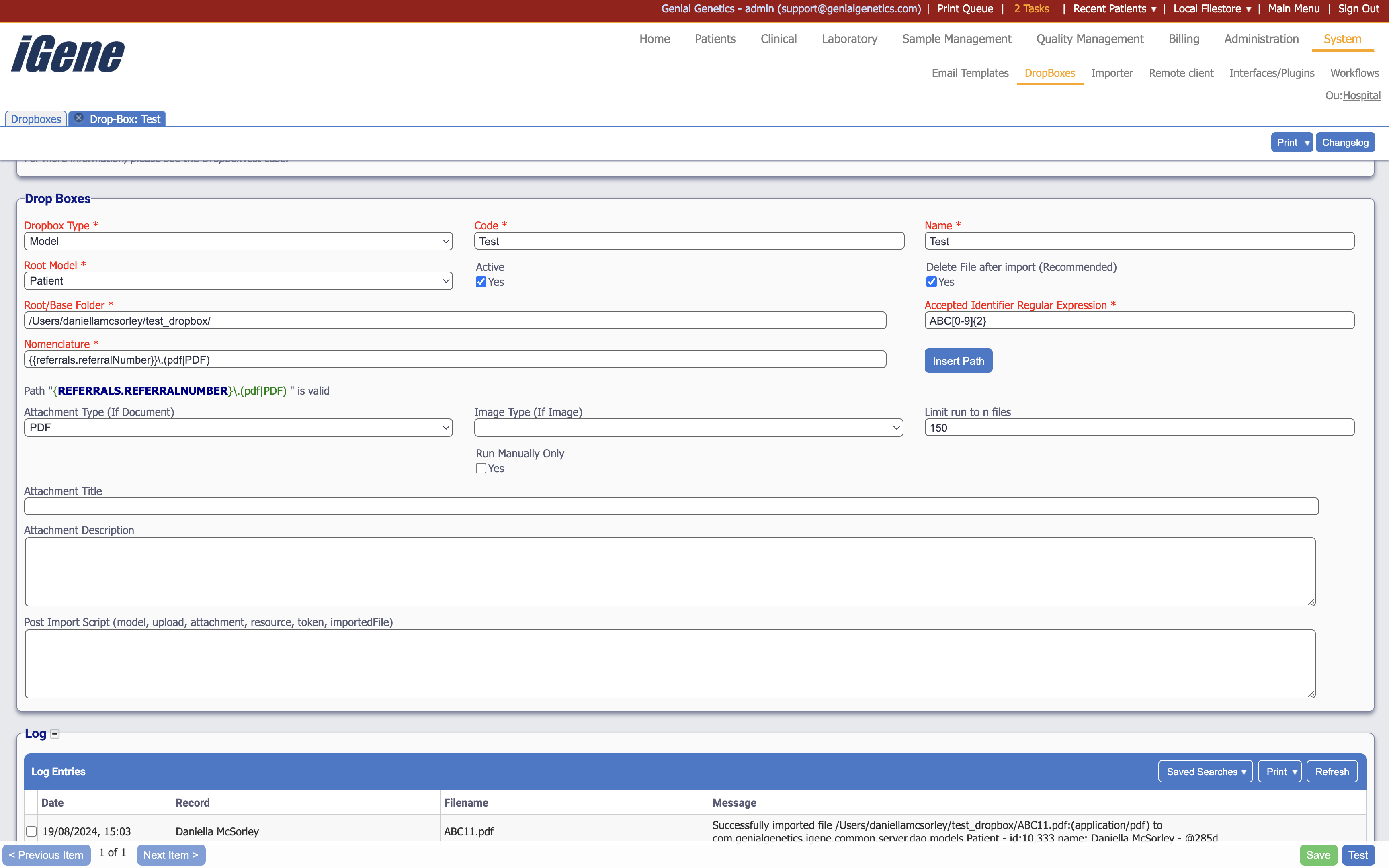
Clicking to create a new dropbox will open the following page. This example has the fields pre-filled in, and will each be explained below.
Fields
- Dropbox Type - This is the type of dropbox that is being created. This will usually be set to ‘Model’, but also has options for Barcode, Cyrillic, Pedigree, Test, and Result.
- Code - A unique code for the dropbox.
- Name - The name of the dropbox.
- Root Model - The root model of the dropbox. This indicates where the dropbox will be looking for data.
- Active - Whether the dropbox is active or not.
- Delete File After Import (Recommended) - This will delete the file after it has been imported into iGene. This is recommended to prevent the same file being imported multiple times.
- Root/Base Folder - The root folder of the dropbox. This is where the dropbox will be looking for data. Note that the format is different for Windows and Linux systems.
- Accepted Identifier Regular Expression - This is a regular expression that will be used to identify the files that the dropbox will import. If a file does not match this regular expression, it will not be imported. For this example, the regular expression is set as ABC[0-9]{2}. The dropbox is ret to search for referral numbers (see the next bullet point), so will be a match if finding a referral number that is ABC followed by two numbers. Users unfamiliar with regular expressions may find the free website regex101.com useful for testing their regular expressions.
- Nomenclature - The nomenclature of the dropbox. This is the nomenclature that will be used when importing data into iGene. For this example, the nomenclature is set as {{referrals.referralNumber}}.(pdf|PDF). The part in the double curly brackets defines what the Accepted Identifier Regular Expression will be searching for. The part in the parentheses defines what file types the dropbox will be looking for. In this example, the dropbox will be looking for files that have a referral number followed by a period and then either ‘pdf’ or ‘PDF’. Note that there is also an Insert Path button which can be used to find the data that will be inserted into the nomenclature.
- Attachment Type (If Document) - This is the type of attachment that the dropbox will be looking for. This will usually be set to ‘PDF’ or ‘Report’. or otherwise left blank.
- Image Type (If Image) - This is the type of image that the dropbox will be looking for. This can be left blank if the dropbox is not looking for images.
- Limit Run To N Files - This is the number of files that the dropbox will import in a single run. This is useful if the dropbox is looking at a large number of files, but you only want to import a certain number at a time.
- Run Manually Only - This will prevent the dropbox from running automatically. This is useful if you want to run the dropbox manually, but not automatically.
- Attachment Title - This is the title that will be given to the attachment when it is imported into iGene. If left blank, it will use the file’s name.
- Attachment Description - This is the description that will be given to the attachment when it is imported into iGene. It can be left blank if not needed.
- Post Import Script - This is a script that will run after the file has been imported into iGene. This can be left blank if not needed.
Below this area is a log that will show any successful imports, as well as unsuccessful imports. This can be useful for troubleshooting any issues with the dropbox. There is also a Test button in the bottom right corner which will check if there are any files in the root folder that match the expression. This can be useful for checking if the dropbox is set up correctly before running it.