Noticeboard
If a noticeboard has been set up in Administration > Noticeboard, then this is where the messages will appear.
By default, it will show only the unread messages.
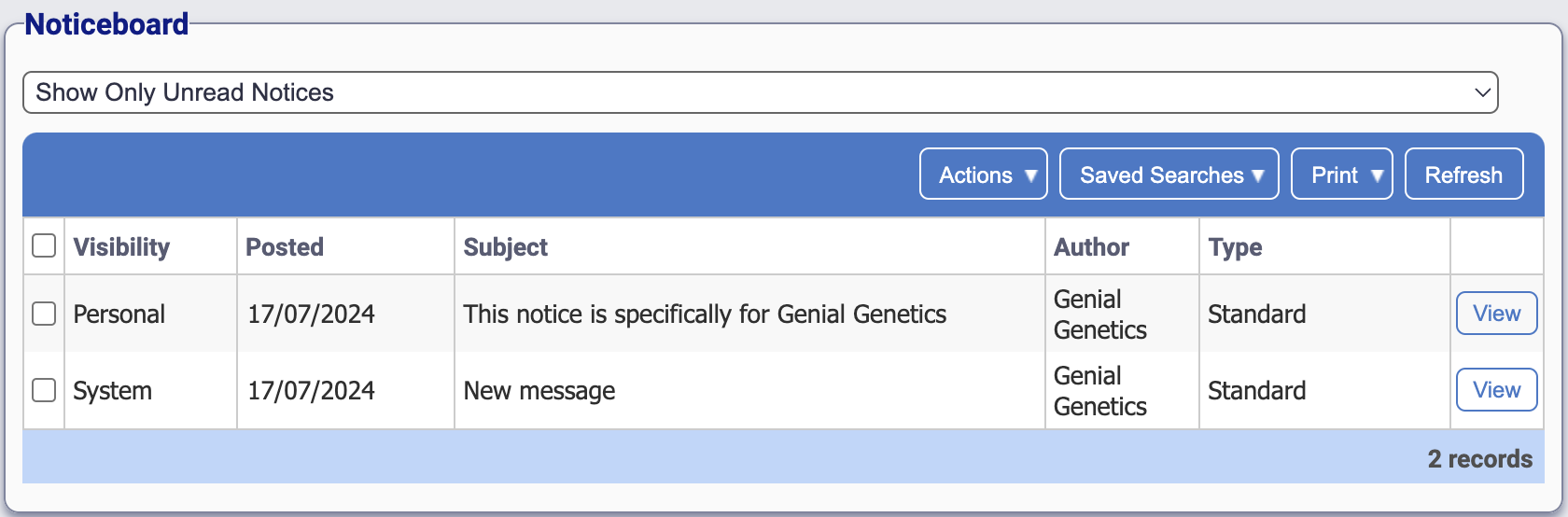
Columns explained
- Tick box - Use this when utilising the Actions button
- Visibility - This can either be System or Personal
- System: A notice that goes out to all users (system-wide)
- Personal: A notice which is set to go out to a specific user
- System: A notice that goes out to all users (system-wide)
- Posted - The date that the notice was written within the Administration > Noticeboard section of iGene
- Subject - The title of the notice
- Author - The name of the person who created the notice
- Type - The type of notice (these can be set in Administration > Preferences > Notice Types)
- View - Click this button to see the notice in full, including the main body
Clicking View
Clicking View on a row presents the user with full notice, and removes it fro the unread notices list.
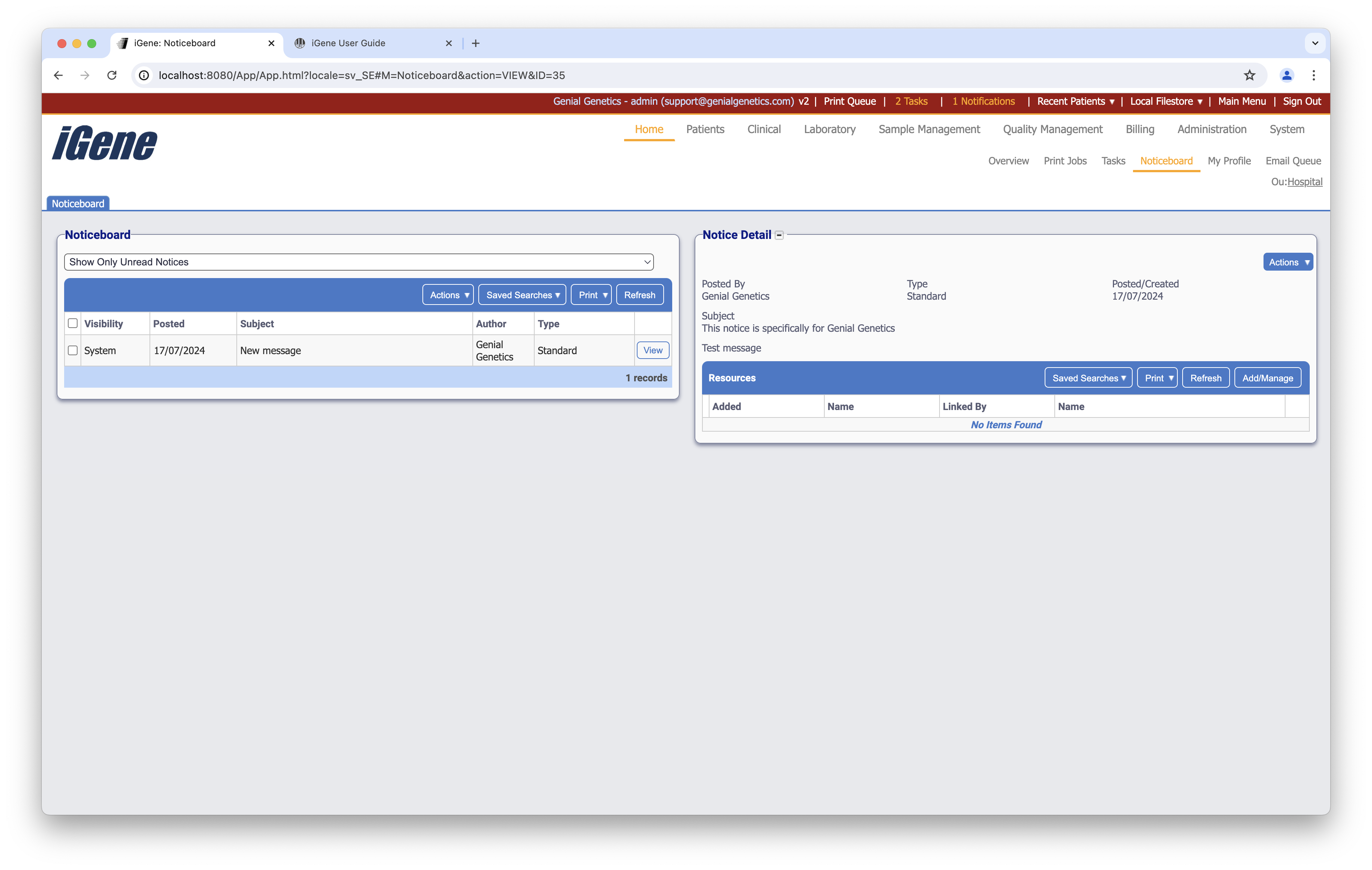
In the Notice Detail box, the user is presented with the above information. In this example, the body of the notice is “Test message.”
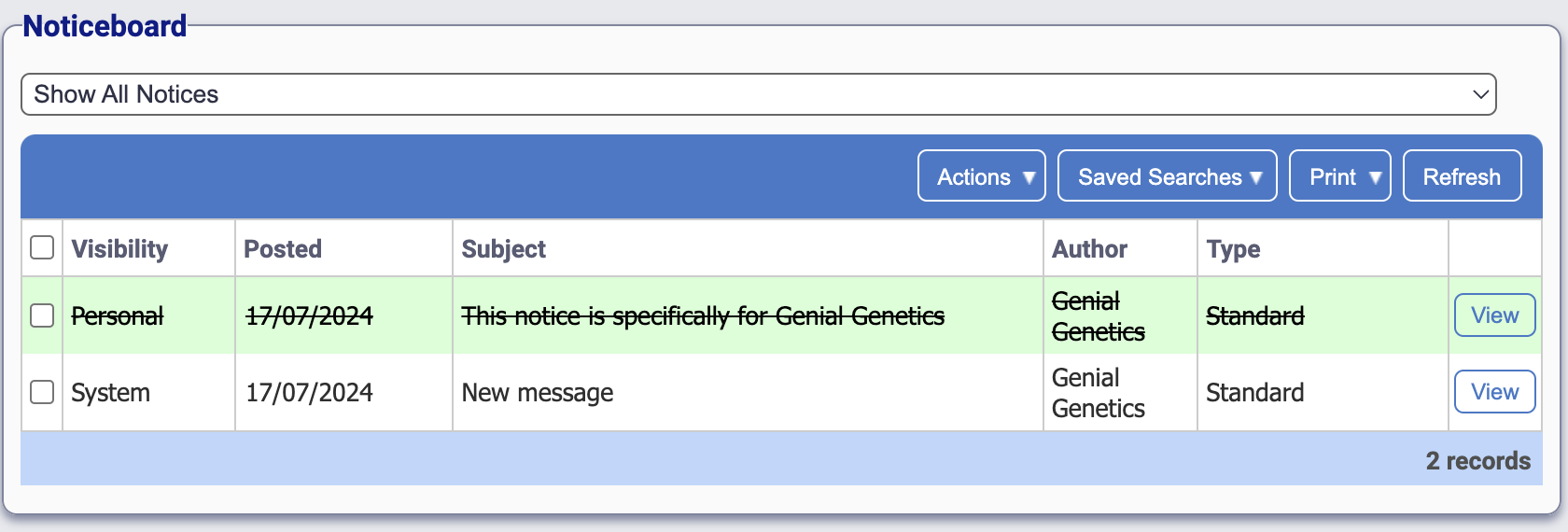
Showing all notices
If the noticeboard dropdown is changed to Show All Notices, the user will see both read and unread notices. Read notices are displayed with a strikethrough, making it instantly recognisable to the user that they have been read.