Appointments
The screen allows users to see all booked appointments for any given date. There are several sections to this page, so they shall be discussed one at a time.
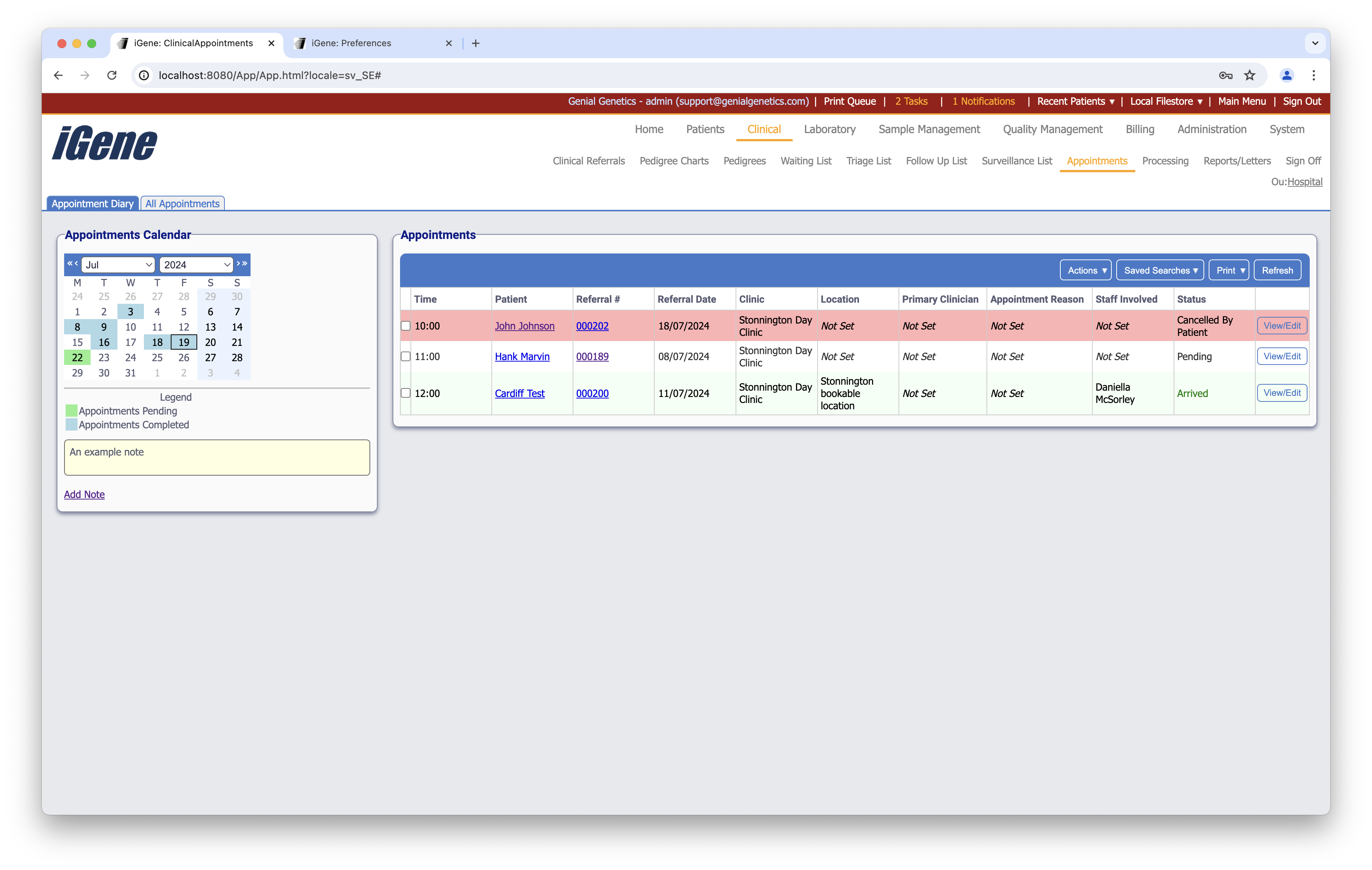
Appointment Diary
Appointments Calendar
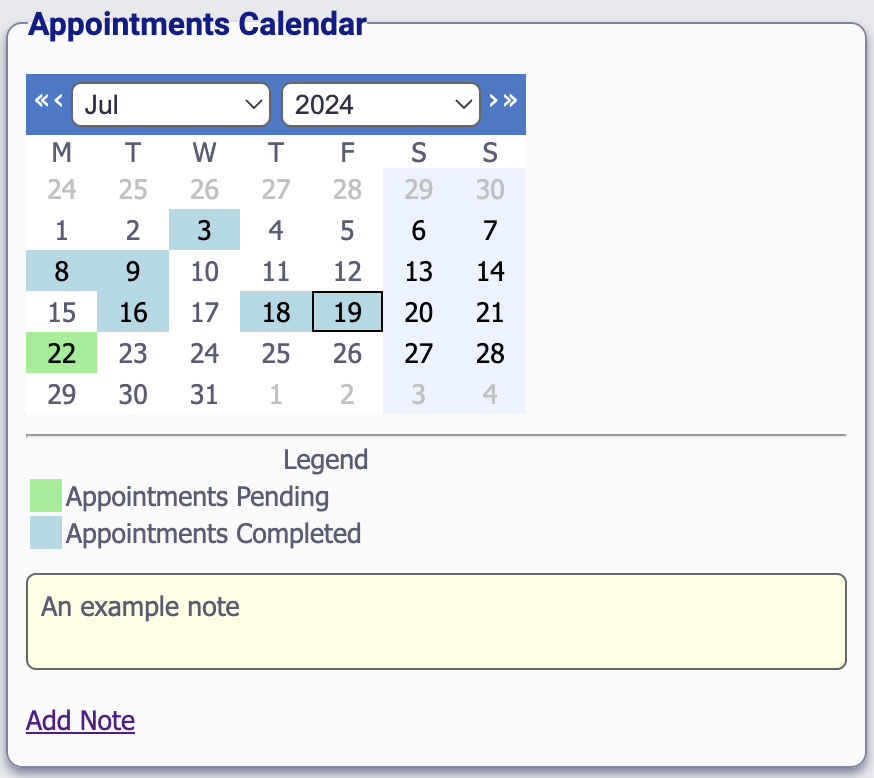
This area displays which days have clinics booked. These days are colour coded to inform the user when the appointments have started to become complete. Hence, blue days will have at least one completed appointments, and green days will have appointments booked, but not yet complete.
Notes
At the bottom of this area, there is the option to add a note. In this example, a note has been added. These notes are saved to the specific day of the calendar. Presently, 19th July 2024 is the clicked day, so this note will show only here. If clicking a different day then different notes can be added, and this above example note will not. Each day can have as many notes attached as needed.
Appointments Table
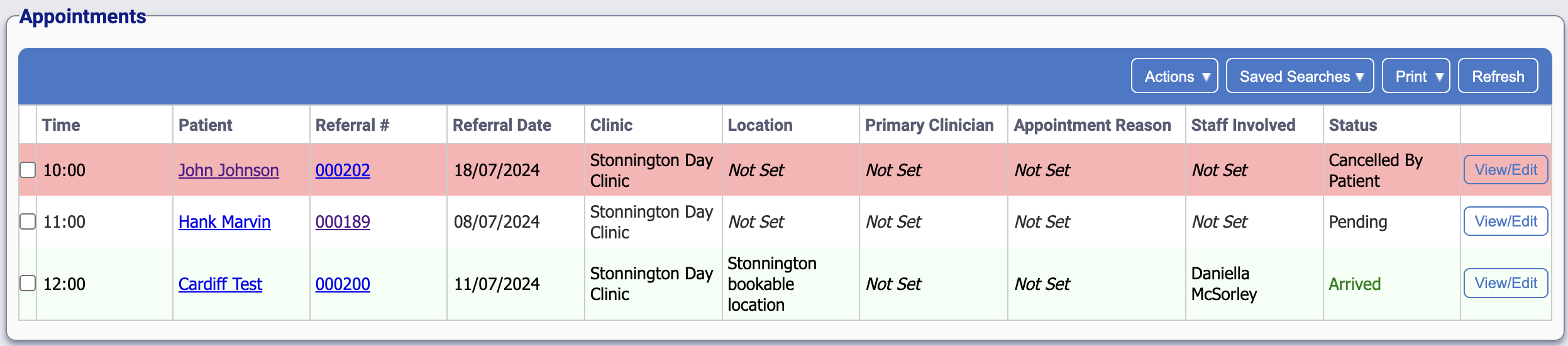
This area displays all appointments booked for whichever day is clicked on the calendar. Further colour coding can be observed here:
- Red: The appointment did not go ahead
- White: The appointment is pending
- Green: The appointment has been successfully outcomed
Table Columns
- Time - The time that the appointment is due to take place.
- Patient - The name of the patient.
- Referral # - The unique referral number
- Referral Date - The date that the referral was created.
- Clinic - The clinic where the appointment is booked for.
- Location - If a specific location for the clinic is booked, this will be displayed here.
- Primary Clinician - If a primary clinician has been set within the referral, the name will be displayed here.
- Appointment Reason - If an appointment reason has been set within the referral, it will be displayed here.
- Staff Involved - Any staff involved with the appointment will be displayed here.
- Status - The status of the appointment.
- View/Edit - Opens a popup with the appointment details.
Additional Actions
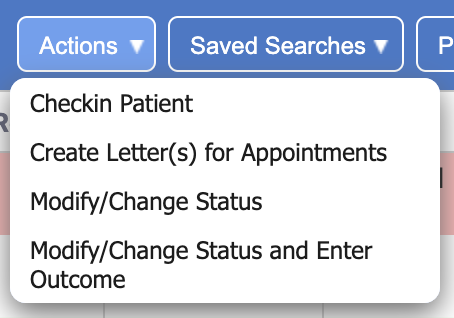
- Checkin Patient - Marks the patient as arrived and opens the appointment details popup.
- Create Letter(s) for Appointments - Opens a popup from where appointment letters can be created.
- Modify/Change Status - Opens the appointment details popup without marking the patient as arrived.
- Modify/Change Status and Enter Outcome - Marks the patient as arrived and opens the outcome screen.
All Appointments
Above the appointment calender, there is another tab from where all appointments can be viewed together, regardless of the date.

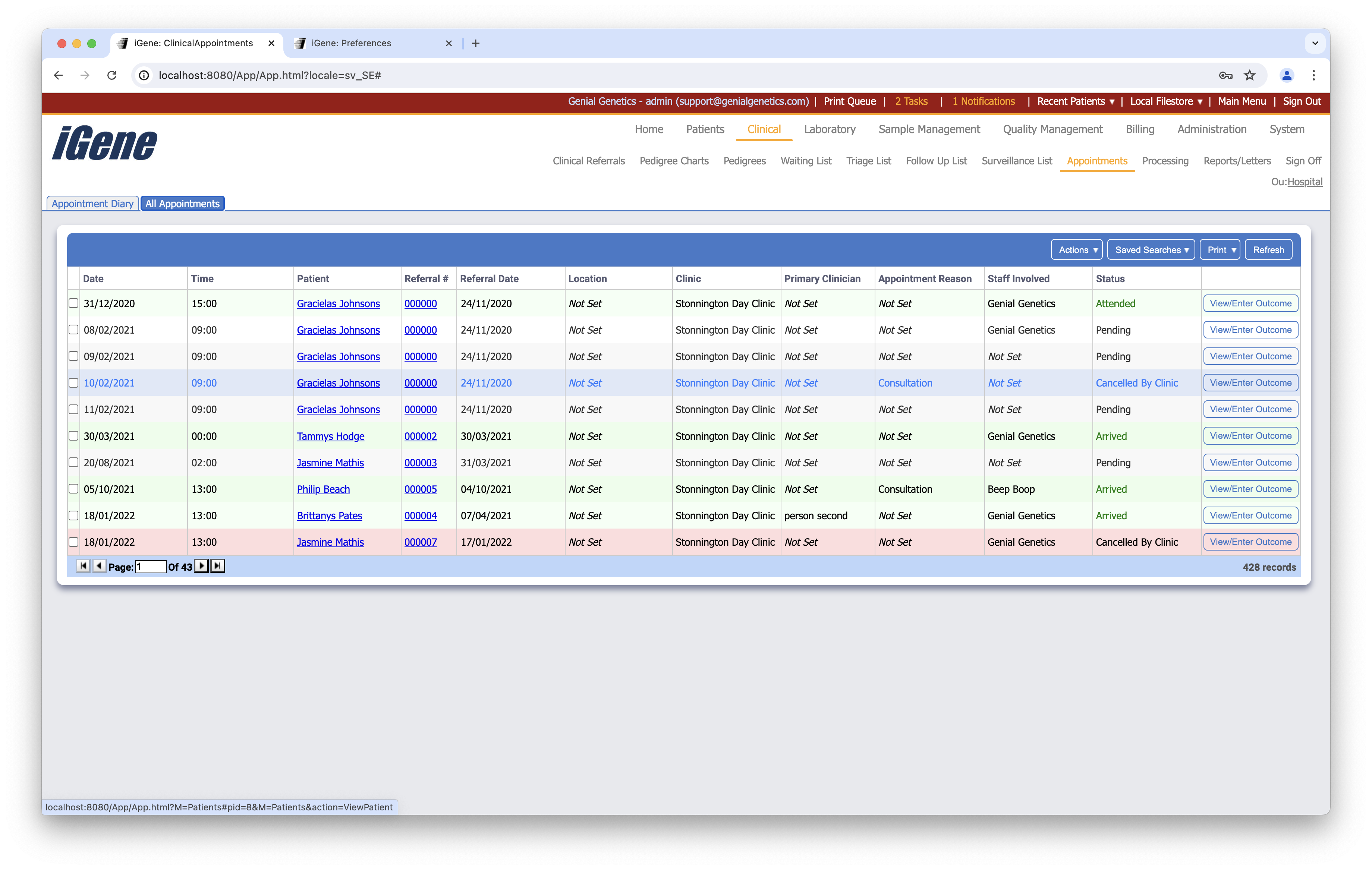
The colour-coding here is the same as the previous screen, where red indicates an unsuccessful appointment, green indicates a successful appointment, and white is pending.
Table Columns
- Date - the date of the appointment.
- Time - The time that the appointment is/was due to take place.
- Patient - The name of the patient.
- Referral # - The unique referral number
- Referral Date - The date that the referral was created.
- Location - If a specific location for the clinic is booked, this will be displayed here.
- Clinic - The clinic where the appointment is booked for.
- Primary Clinician - If a primary clinician has been set within the referral, the name will be displayed here.
- Appointment Reason - If an appointment reason has been set within the referral, it will be displayed here.
- Staff Involved - Any staff involved with the appointment will be displayed here.
- Status - The status of the appointment.
- View/Enter Outcome - Opens the outcome page for that appointment.
Additional Actions
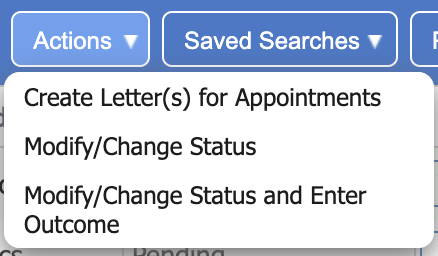
- Create Letter(s) for Appointments - Opens a popup from where appointment letters can be created.
- Modify/Change Status - Opens the appointment details popup without marking the patient as arrived.
- Modify/Change Status and Enter Outcome - Marks the patient as arrived and opens the outcome screen.