Sent Reports
This page of iGene displays a list of all the reports that have been sent from the system. It is possible to view the details of each report, and to download the report as a PDF file.
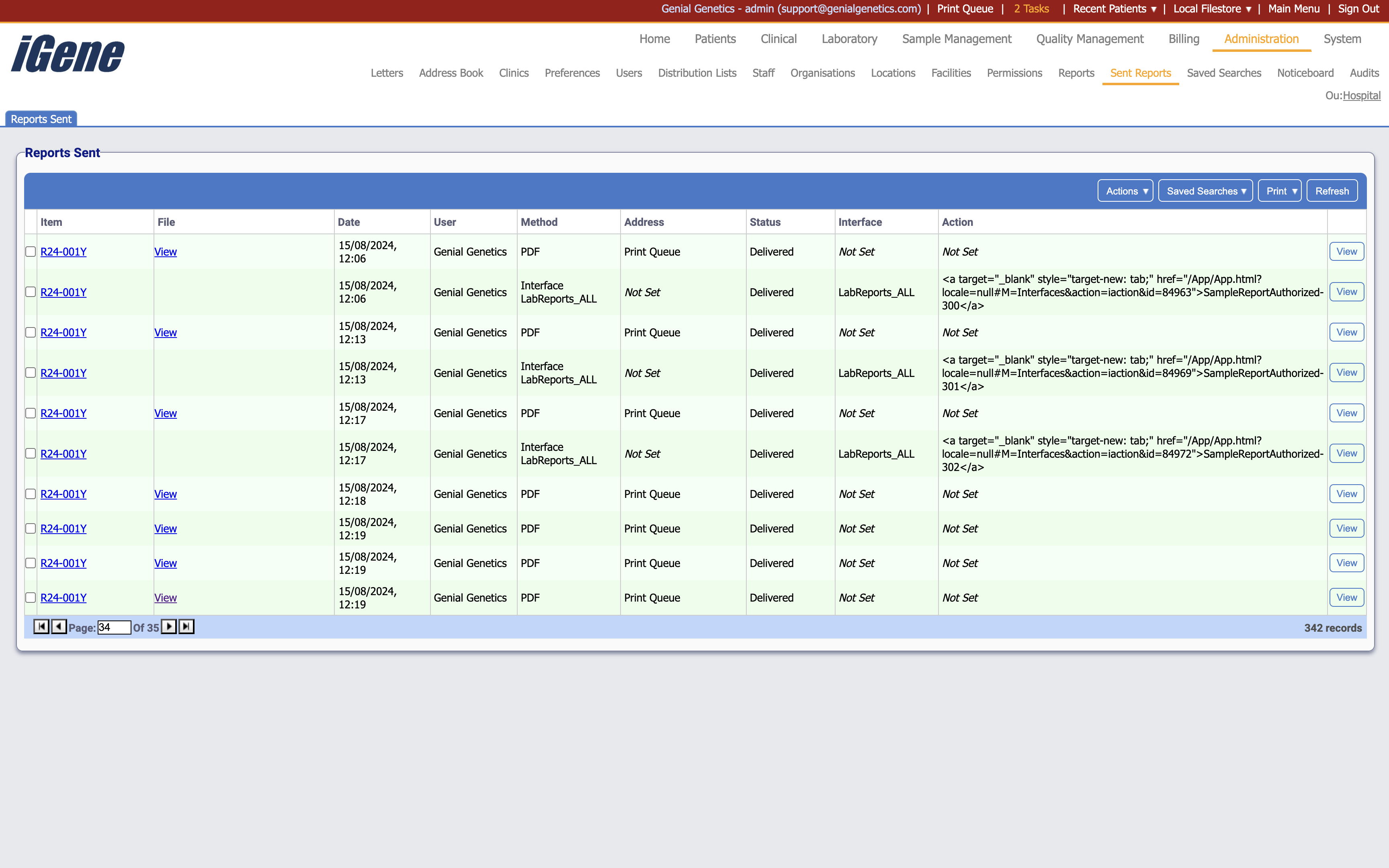
Table Columns
- Item - A hyperlink to the report within iGene. The text reflects the referral number of the patient.
- File - A hyperlink to download the report as a PDF file.
- Date - The date the report was sent.
- User - The user who sent the report.
- Method - The method used to send the report. This will indicate if an interface or plugin was used.
- Address - If no interface or plugin was used, this will usually show as being sent to the print queue. If an interface or plugin was used, this may display something different dependant on the configuration.
- Status - The status of the report. This will indicate if the report was sent successfully or if there was an error.
- Interface - The interface or plugin used to send the report. If no interface or plugin was used, this will show as ‘Not Set’.
- Action - If an interface of plugin was used, this will show the action that was taken.
- View - A link to open a popup with information on the report.
Additional actions
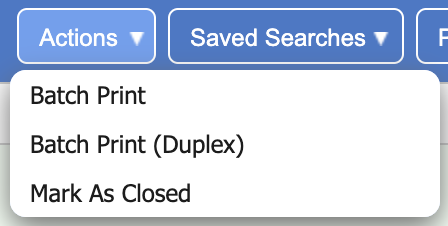
- Batch Print - This will allow you to print multiple reports at once.
- Batch Print (Duplex) - This will allow you to print multiple reports at once, with the option to print on both sides of the paper.
- Mark as Closed - This will mark the selected reports as closed.