Saved Searches
Throughout iGene, there are buttons within the tables which says “Saved Searches”. This area of the app is where these options are defined. Below is an example of this from the Preferences page.
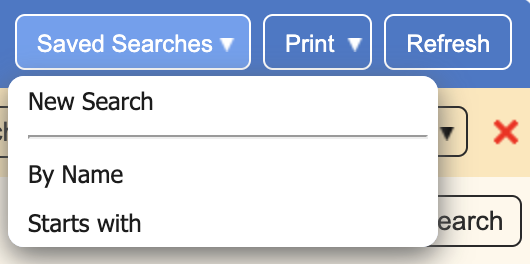
The first and third rows within the table of the Saved Searches show these options.
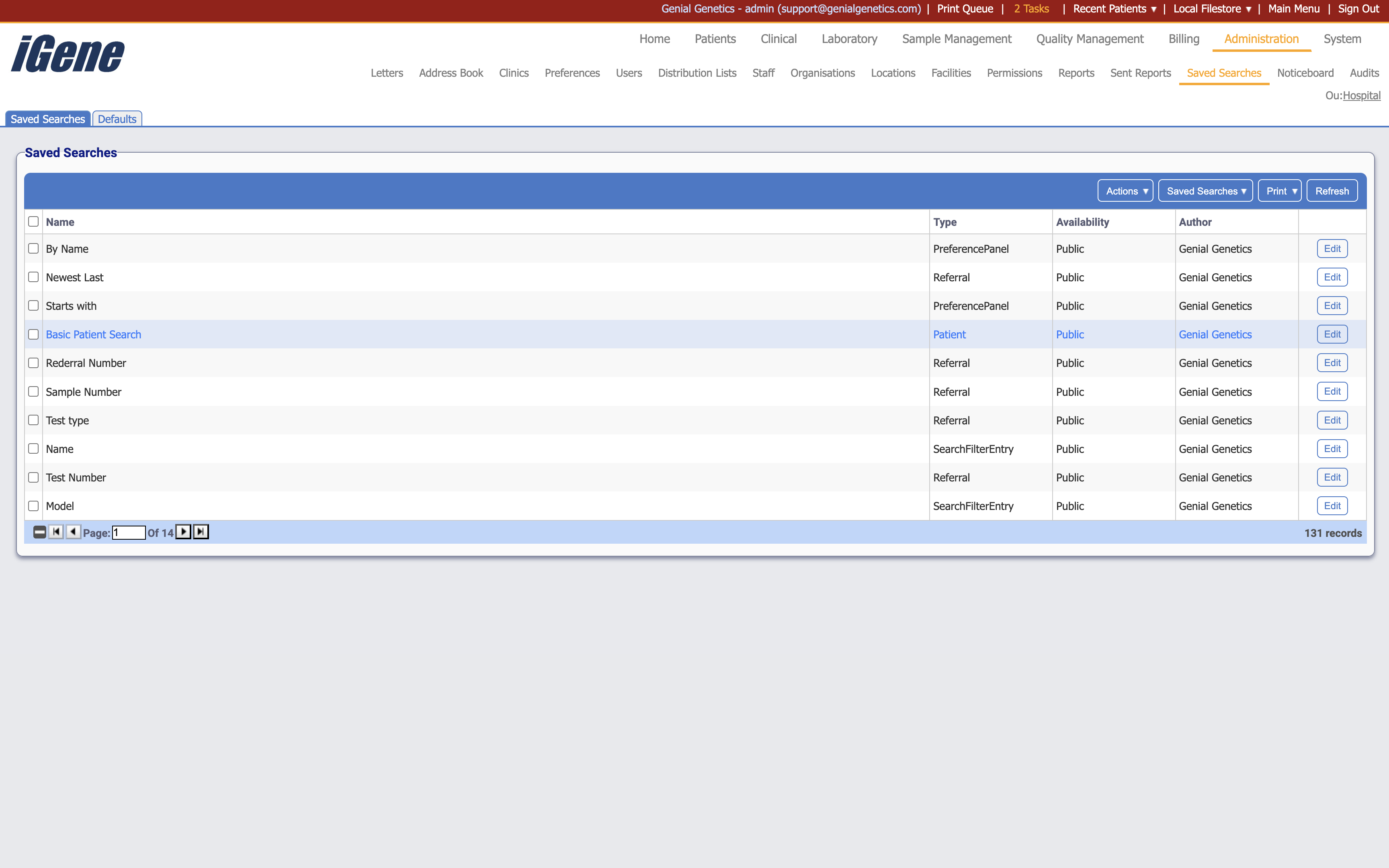
Table Columns
- Name - The name of the saved search.
- Type - The type of the saved search - this indicates where in the app the saved search can be used.
- Availability - Whether the saved search is available to all users or only to specific users.
- Author - The user who created the saved search.
- Edit - A link to open a popup with details of the saved search. The details can be edited here.
Additional actions
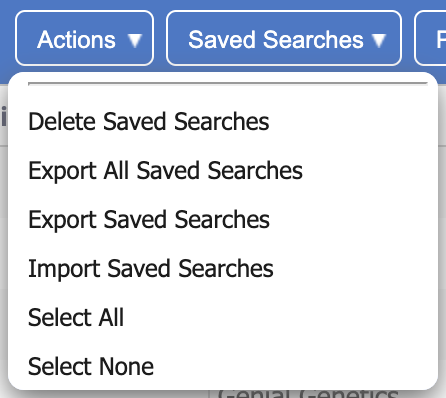
- Delete Saved Searches - This will remove the saved search(es) from the list.
- Export All Saved Searches - This will export all saved searches to a file.
- Export Saved Searches - This will export the selected saved searches to a file.
- Import Saved Searches - This will allow you to import saved searches from an external source.
- Select All - This will select all saved searches in the list.
- Select None - This will deselect all saved searches in the list.
Adding a new saved search
New saved searches can be added when creating a new search in the app. When the filter is saved, it will appear within this table. Below is an example of a new search filter being created for this table.
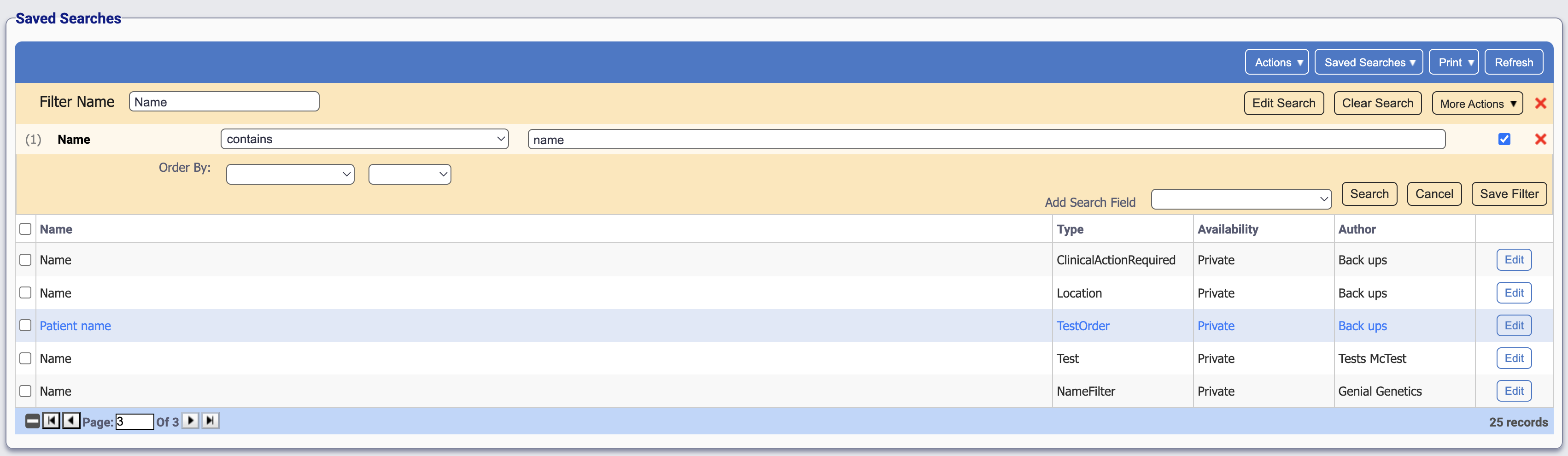
The name of the filter is Name. It checks for any rows that contain the string Name. Clicking Save Filter then adds it to this table.
Defaults
At the top of the table, there is a separate tab for Defaults. This is where the default filters are stored. These are filters that are applied to the table when it is first loaded.
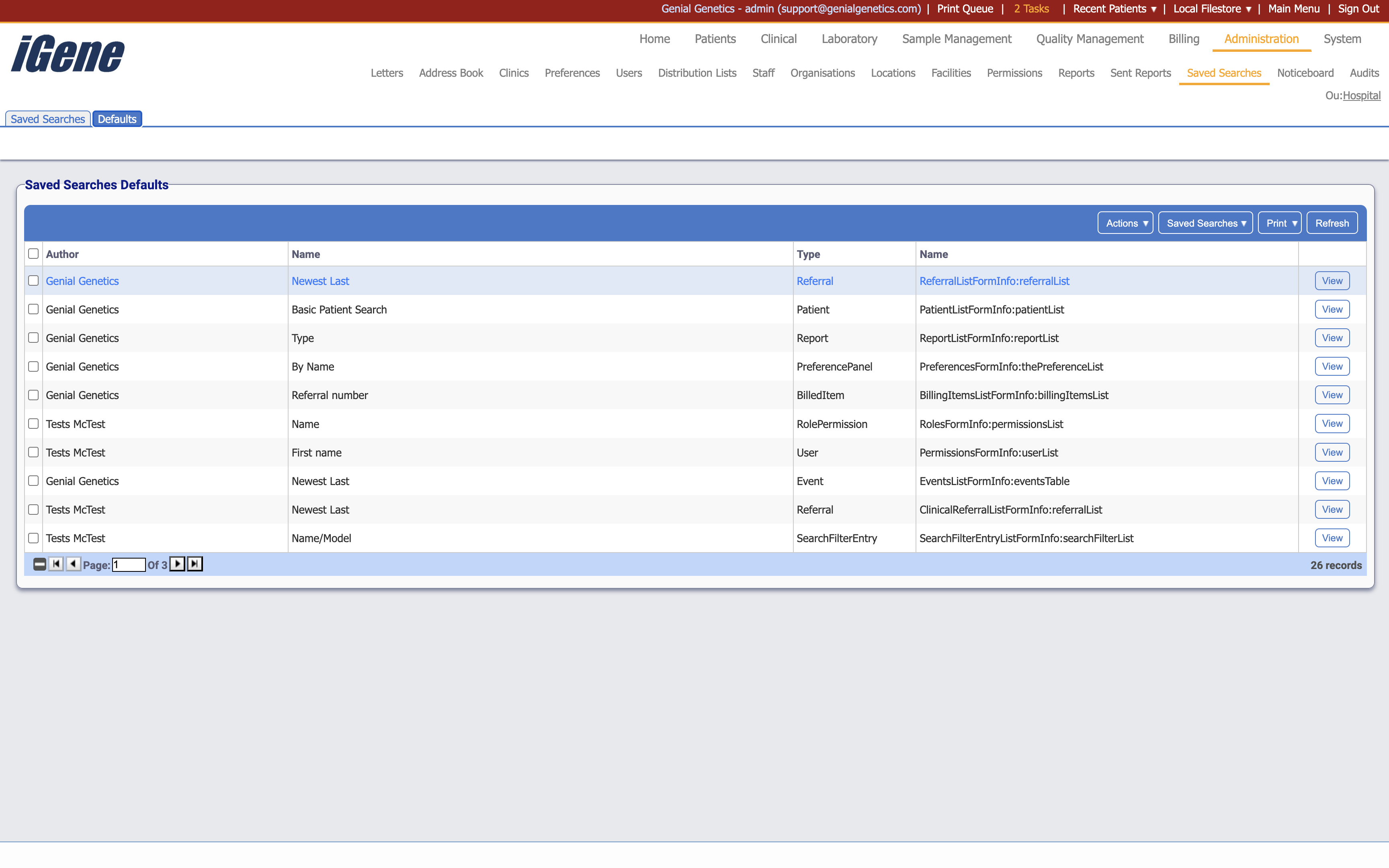
Table Columns
- Author - The user who created the default filter.
- Name - The name of the default filter.
- Type - The type of the default filter.
- Name - The table identifier.
- View - A link to open a popup with details of the default filter. The details can be edited here.
Additional actions
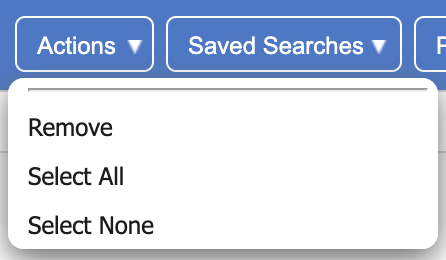
- Remove - This will remove the selected filter(s) from the list.
- Select All - This will select all filters in the list.
- Select None - This will deselect all filters in the list.