Test Status Template
The Test Status Templates preference is used to set up how statuses change when tests are ordered within iGene.
Test Status Template requires statuses to be set within the Test Statuses preference and is selected and used in the Tests/Orders preference.
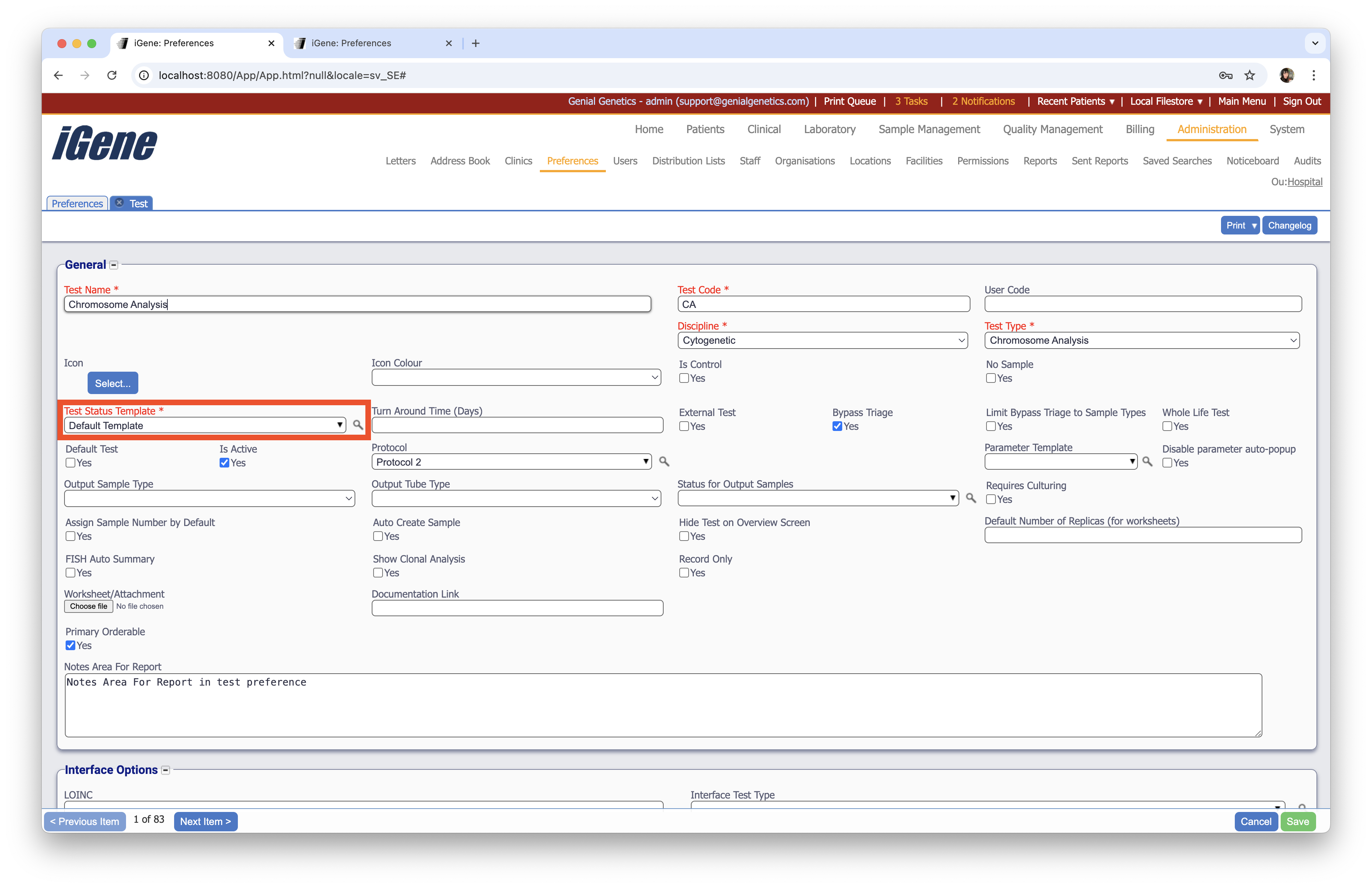
Location
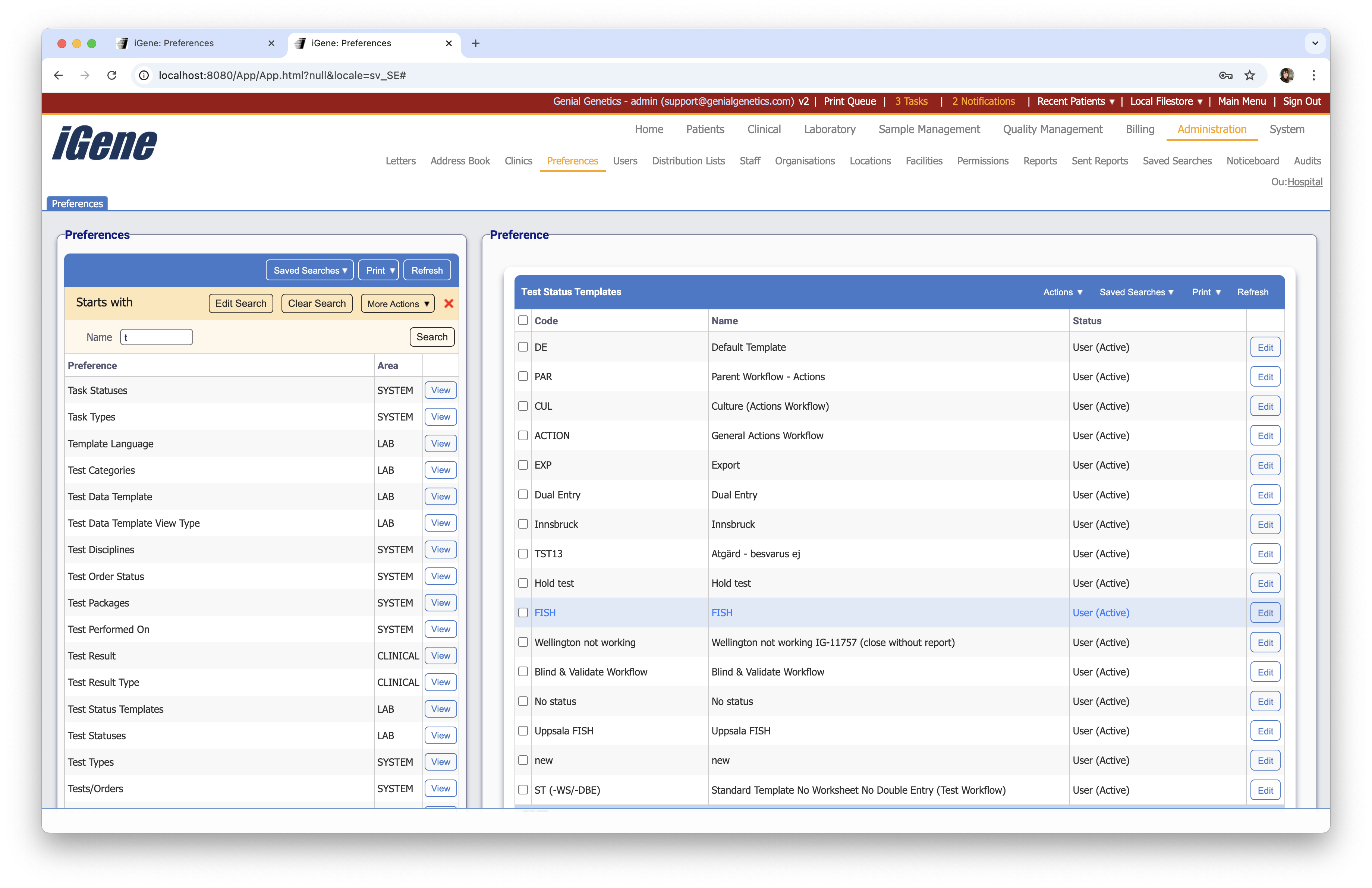
The table of test status templates will display the code, name and status for the templates.
Configuration
When adding or editing a Test Status Template, the following form opens to complete.
Always press Save in the bottom right corner of the browser after adding or editing a Test Status Template.
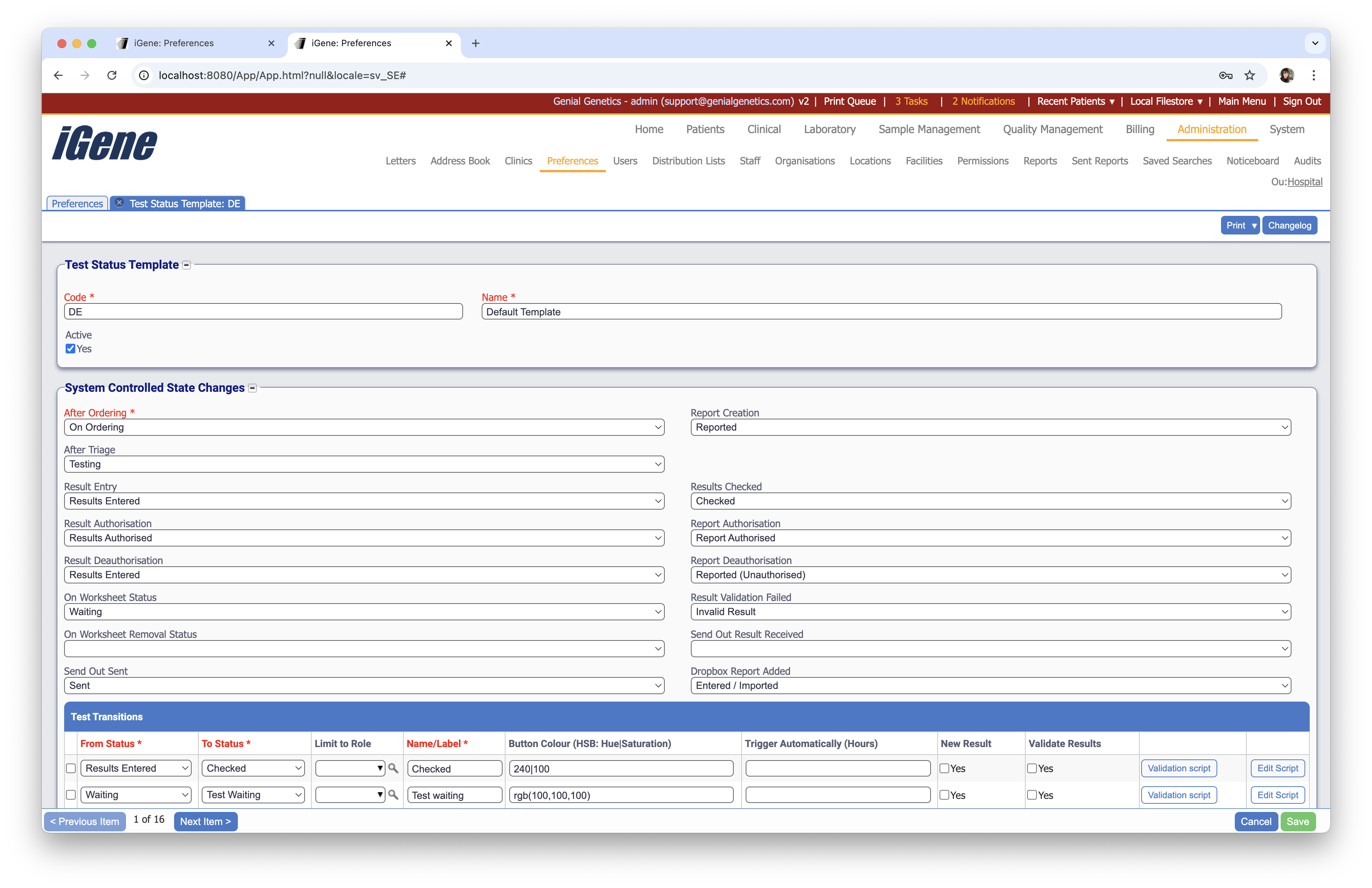
Code (Required, Unique)
A unique code for the Test Status Template. This can be the same as the name but must be unique throughout the entire system.
Name (Required)
A name for the preference. It is advisable to keep this unique.
Active
A checkbox to activate / deactivate an entry. If the preference is not active, it will not be selectable in any drop down lists.
Automated System Controlled State Changes
Once set up, when a test goes through a transition matching any of the described state changes, then that test will be labelled with the appropriate test status. In the above example, once a test has results entered the status will change to ‘Results Entered’ and once a test has been reported and then authorised the status will change to ‘Report Authorised’.
- After Ordering: The status to assign after the test has been initially ordered/created.
- After Triage: The status to assign after the test has been triaged.
- Result Entry: The status to assign when a result has been entered.
- Result Authorisation: The status to assign after a test has been authorised.
- Result Deauthorisation: The status to assign when a test is deauthorised. The status can also be reverted to the previous status.
- On Worksheet Status: The status to assign when the test is placed onto a worksheet.
- On Worksheet Removal Status: The status to assign when the test is removed from a worksheet.
- Send Out Sent: The status to assign when an external send-out test has been sent.
- Report Creation: The status to set when the report has been created (but not yet authorised).
- Results Checked: The status to set when the result code on a result has been checked.
- Report Authorisation: The status to assign after a report has been authorised.
- Report Deauthorisation: The status to set when a report is deauthorised. The status can also be reverted to the previous status.
- Result Validation Failed: The status to set when a result is invalid. This status is used when two or more results are entered per test and the results don’t match.
- Send Out Results Received: The status to set when the results are added to an external send-out test.
- Dropbox Report Added: The status to set once th report has been added via a dropbox.
The statuses available in the dropdown lists are set in another preference: Test Statuses. The colours for the test statuses are also set here.
Test Transitions table
A test status template can also define a list of transitions that indicate specific user actions for changing from one status to the other. Transitions provide additional actions (via buttons and the actions menu) when viewing results to trigger a state change. A transition has the following values:
- From Status: The status the test must be at for this transition to apply.
- To Status: The status the test will have after the transition has been triggered.
- Limit to Role: A user role [TO DO] to limit the transition to. If blank, anyone can perform this transition.
- Name/Label: The name of the transition. This name will appear in the button and action menu item for triggering the transition.
- Button Colour: A colour to set to the button.
- Trigger Automatically (Hours): If a test should transition after an amount of time rather then when pressing a button, enter the amount of hours here.
- New Result: When enabled, a new blank result will be created when the transition is triggered. This is useful for cases where double-entry is required on a result and the first user has finished entering their results.
- Validate Results: When enabled and there are multiple results, the transition will trigger a validation step that will check the current result against the previous result. If both results match (are valid) then the transition will proceed, otherwise the Result Validation Failed status change will be applied. This is useful for cases where double-entry is required for a result and provides a way to track results that may have an issue.
- Validation Script: A script to run to confirm if the status change will be valid.
- Edit Script: A script to run after successfully transitioning the status.
Example
Here is an extra button found at the bottom of test details screen as a result of the 1st row in the transitions table on the example above.
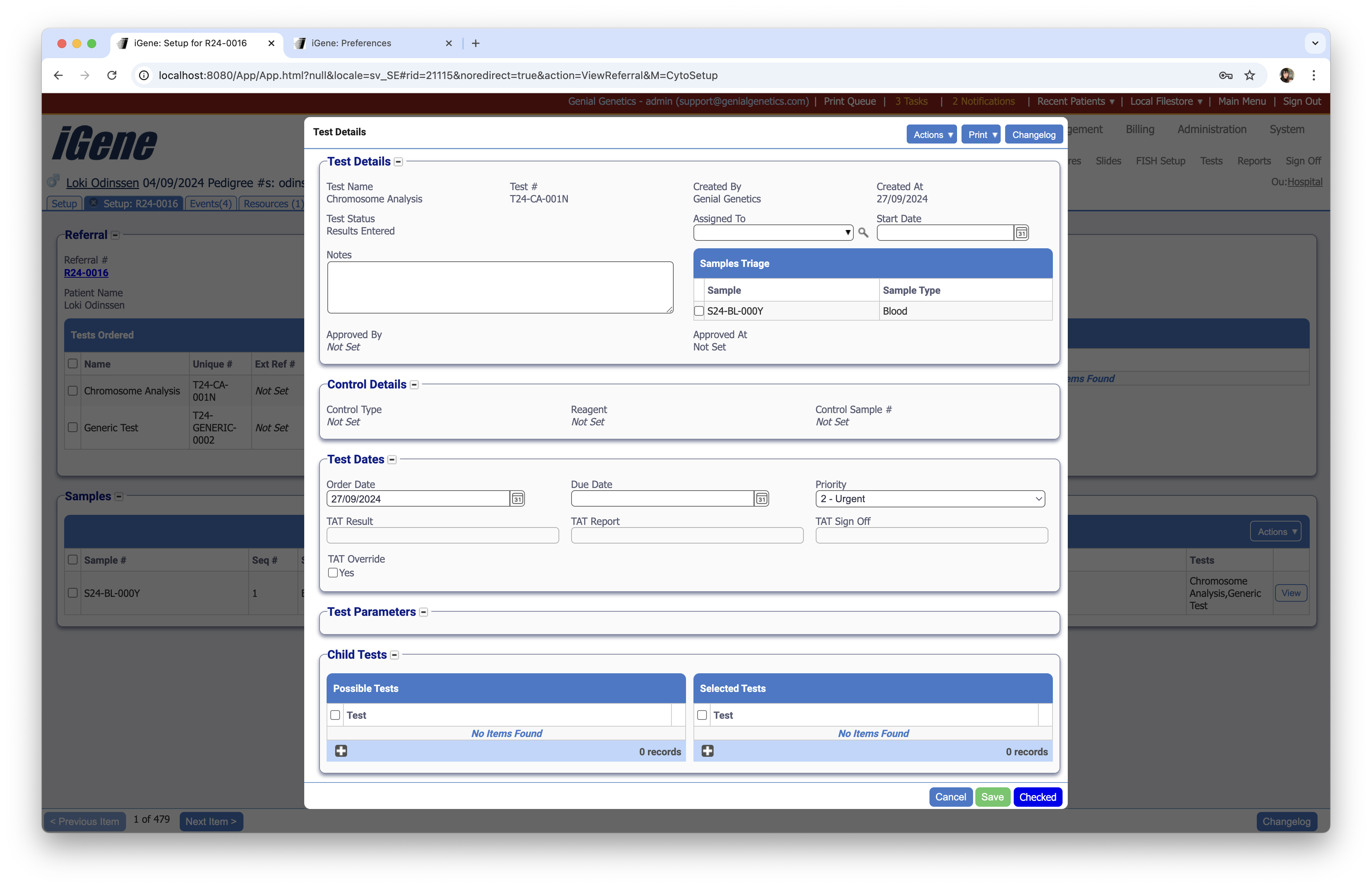 Initially the test status is ‘Waiting’. Once triaged it changes to ‘Testing’. After the results have been entered for the first time, it changes to ‘Results Entered’ and an extra button appears ‘Checked’. When this is pressed the test status will change to ‘Checked’.