Task Types
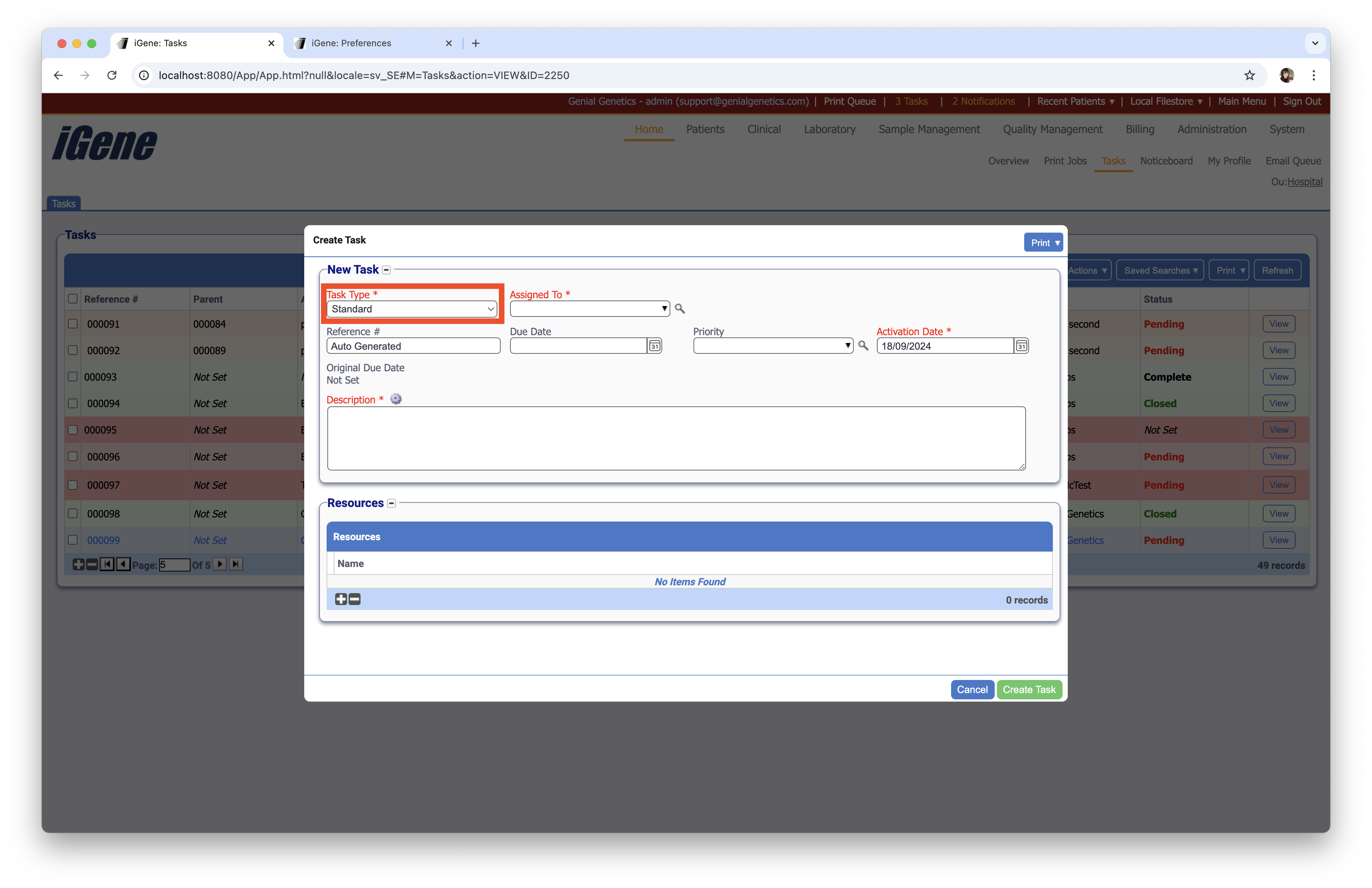
The Task Types preference is used to record a list of task types in the system. These are found when adding a new task. The choice of values are selected using an autocomplete or dropdown list.
Location
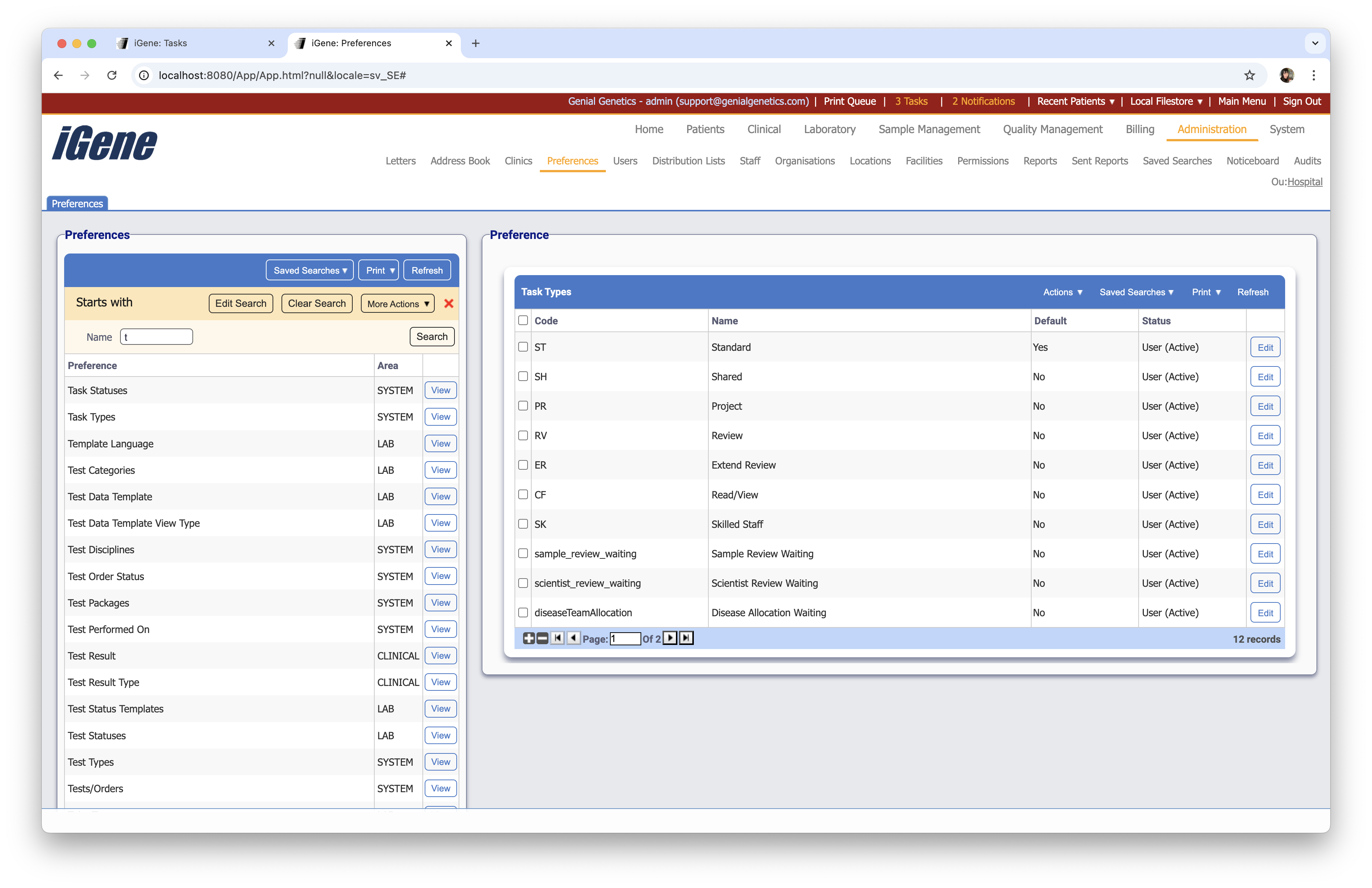
The table of Task Types will display the code, name, and status for the task type.
Configuration
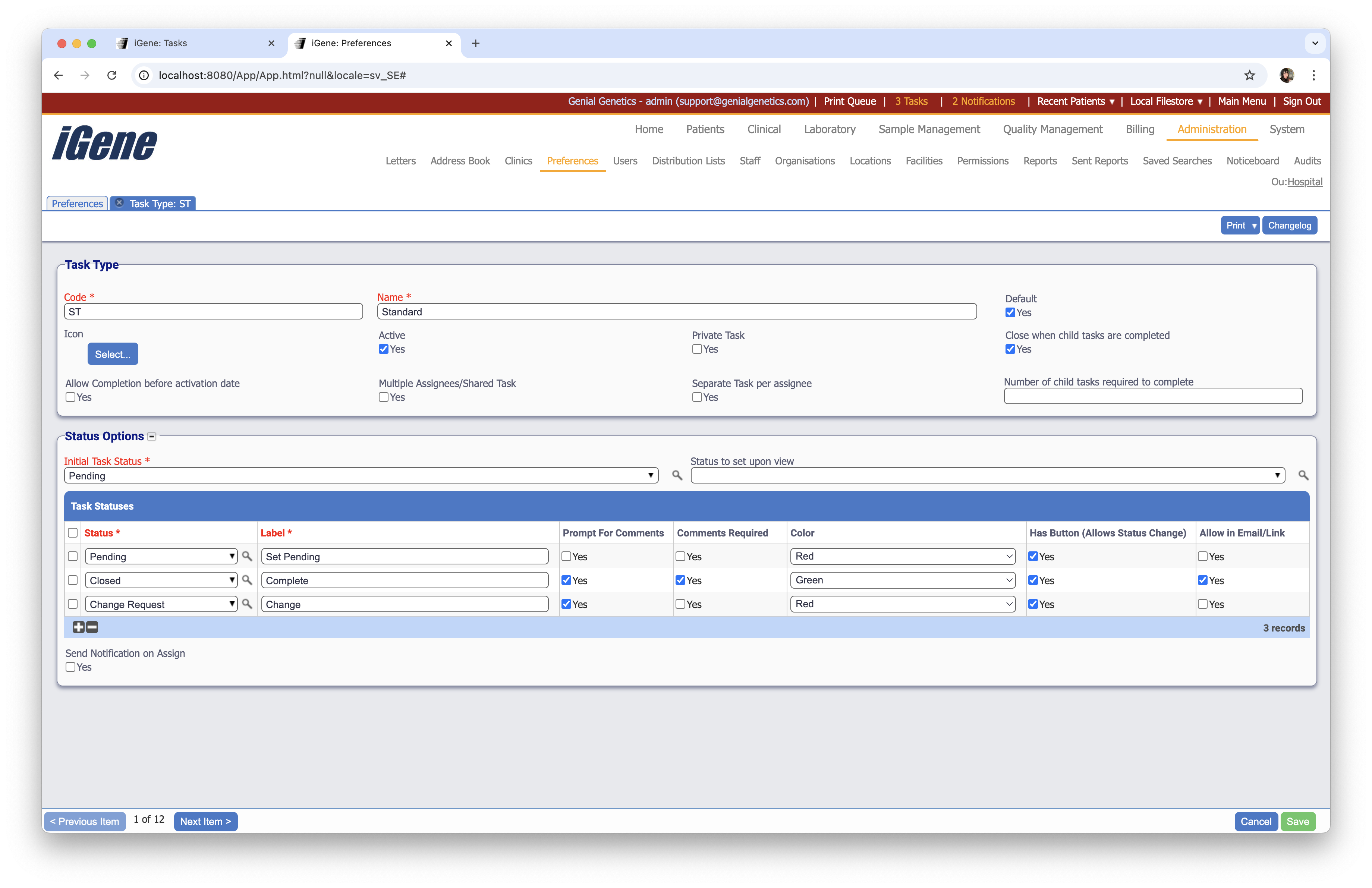
When adding or editing a task type, users are presented with the below form to complete. Always press Save in the bottom right-hand corner of the browser after adding or editing a task type.
Task Type Fields
Code (Required, Unique)
A unique code for the task type. This can be the same as the name but must be unique throughout the entire system.
Name (Required)
A name for the task type. It is advisable to keep this unique.
Default
A checkbox to indicate if the task type is the default. This will be selected by default when adding a new task.
Icon
An icon to represent the task type. This will be displayed in the task list.
Active
A checkbox to activate/deactivate an entry. If the preference is not active, it will not be selectable in any drop-down lists.
Private Task
A checkbox to indicate if the task type is private. This will only be visible to the user who created the task.
Close When Child Tasks Are Completed
A checkbox to indicate if the task should be closed when all child tasks are completed. This is useful for tasks that have multiple sub-tasks that need to be completed before the main task is closed.
Allow Completion Before Activation Date
A checkbox to indicate if the task can be completed before the activation date. This is useful for tasks that can be completed early.
Multiple Assignees/Shared Task
A checkbox to indicate if the task can be assigned to multiple users. This is useful for tasks that require collaboration between multiple users.
Separate tasks Per Assignee
A checkbox to indicate if the task should be separated for each assignee. This is useful for tasks that require individual completion by each assignee.
Number Of Child Tasks Required To Complete
A number field to indicate how many child tasks are required to complete the task. This is useful for tasks that require a specific number of sub-tasks to be completed before the main task is closed.
Status Options Fields
Initial Task Status
A dropdown list to select the initial task status. This is the status that the task will be set to when it is created.
Status To Set Upon View
A dropdown list to select the status that the task will be set to when it is viewed. This is useful for tasks that need to be set to a specific status when they are viewed.
Task Statuses Table
A table to display the task statuses that are associated with the task type.
Status (Required)
A dropdown list to select the task status.
Label (Required)
A label for the task status. This is used when the status is displayed as a button.
Prompt For Comments
A checkbox to indicate if the user should be prompted for comments when changing the task status.
Comments Required
A checkbox to indicate if comments are required when changing the task status.
Color
A colour dropdown list to select the colour of the button that represents the task status.
Has Button (Allows Status Change)
A checkbox to indicate if the task status has a button that allows the user to change the status.
Allow In Email/Link
A checkbox to indicate if the task status can be set via email or a link.
Send Notification On Assign
A checkbox to indicate if a notification should be sent when the task is assigned.