System Search Filters
There are over 14,000 fields within iGene and the majority of them are available to perform searches on, but they are not all selectable at first. It is not possible to display them all on the front end as the lists would become unusable. Instead, the System Search Filters preference area contains preset search filters and additional search and sort filters can be added here.
System Search Filters are required for searching and ordering lists and tables. Adding a search filter here means it can be used to filter or sort data on another page.
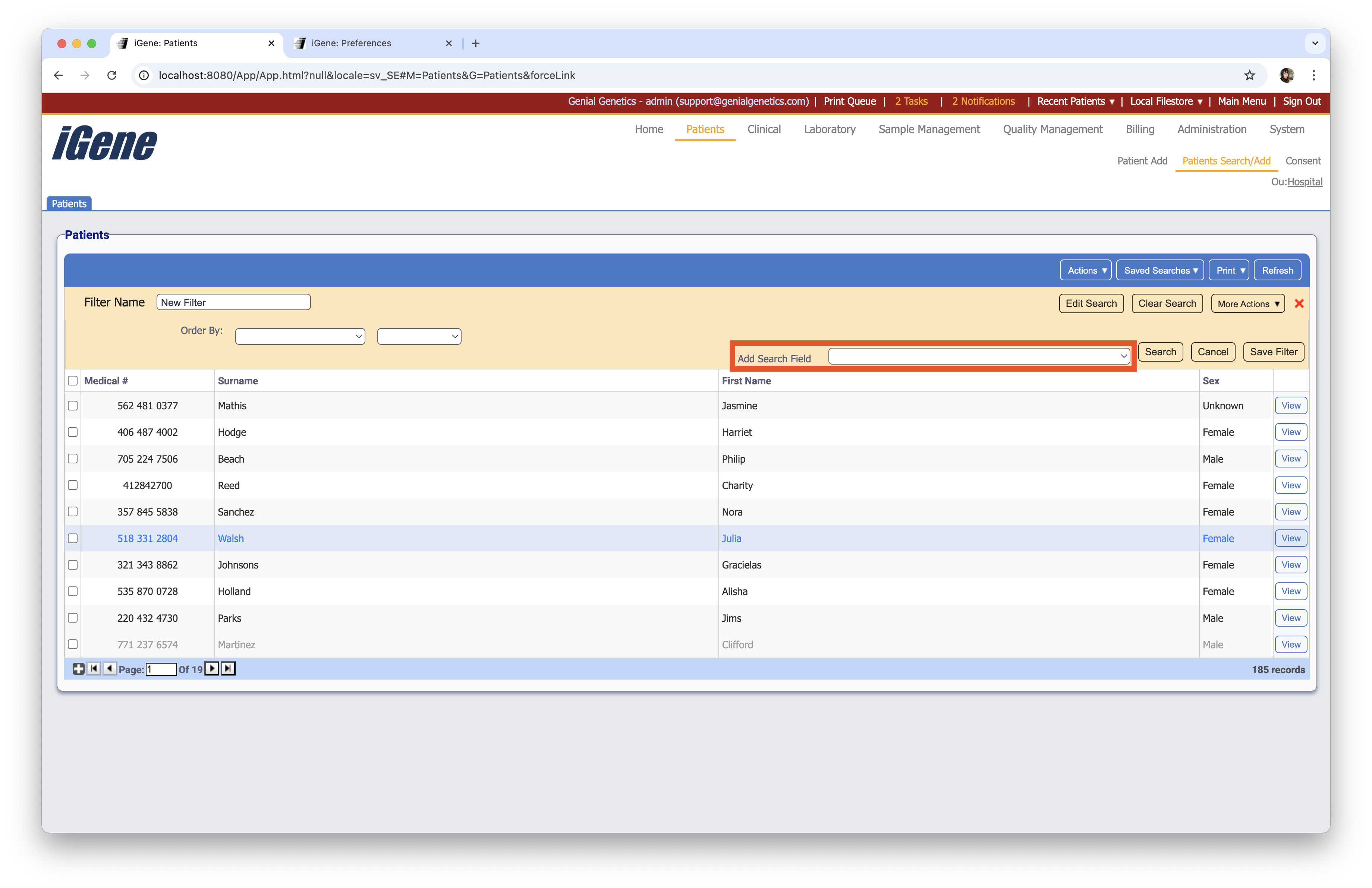
Location
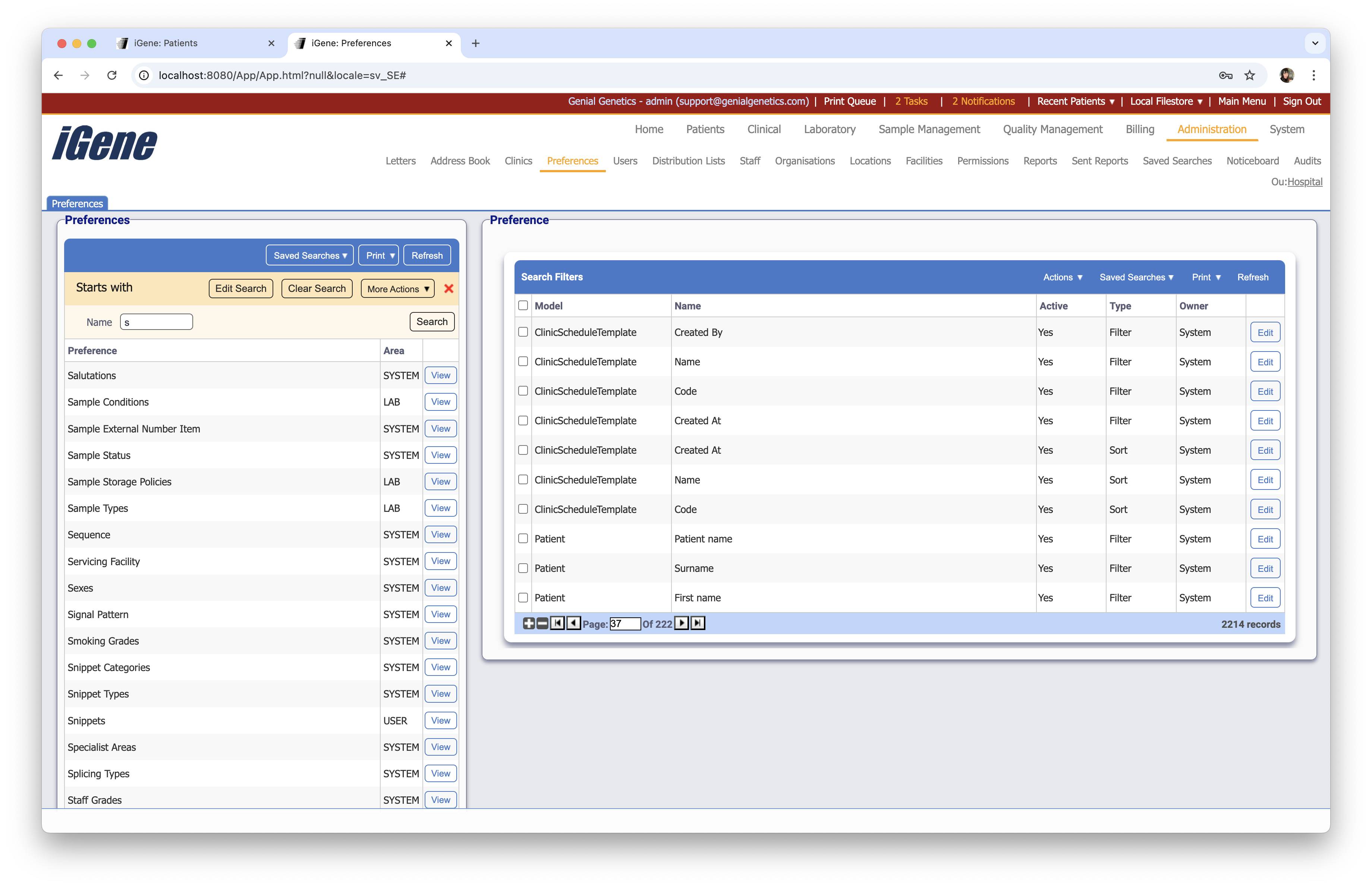
The table for System Search Filters will display the model, name, active status, type and the owner.
Configuration
When editing or creating a System Search Filter, the below form opens to complete.
Always press Save in the bottom right hand corner of the browser after adding or editing a System Search Filter.
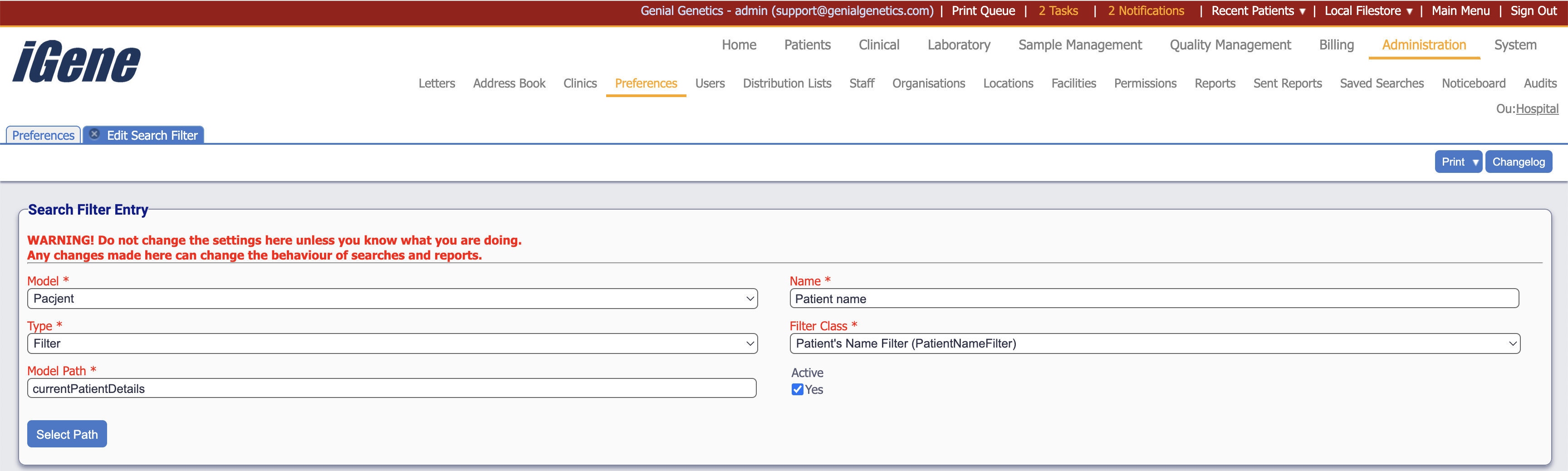
Model (Required)
This describes which page the search filter will be used on. An easy way to find the model, is to navigate to the location / page you want the search filter field to be added to and next to the ‘Search Filters’ button is the ‘Print’ button. Press the Print button and a small box will pop-up containing a heading and a list of any available reports. The heading will contain the Model you require.
Name (Required)
A name for the search filter. It is advisable to keep this unique.
Type (Required)
There are two types available, filter or sort:
- Filter: Actively searches the data and presents any entries that match the criteria set.
- Sort: takes the current data and arranges it in order. For example, this could be alphabetically or date of birth.
Filter Class (Required)
Typically, the following items are used:
- Text Search - ignoring empty (StandardTextSearch): This is the default option. When searching there is a text box to type into.
- Date Search (StandardDateSearch): Enter date in dd/mm/yyyy format or use the date box.
- Dropdown List/Type search (GenericListSearch): Displays a list of items e.g. gender or blood type.
- Autocomplete Type search (GenericAutoCompleteSearch): When searching there is a text box to type into AND it then offers options from a list that match what you have typed. It is possible to search for different tests this way.
- Boolean Search (BooleanSearch): Displays a checkbox on the search screen. Results change depend on whether checkbox is ticked (value is true) or unticked.
- Order: Use this when Sort has been selected for Type.
Model Path (Required)
Displays the path selected by using the Select Path button.
Select Path
Pressing this button brings up a pop-up window starting at the root selected in the Model field.
Active
A checkbox to activate / deactivate an entry. If the preference is not active, it will not be selectable in any drop down lists.