Snippets
The Snippets preference is used to record a list of snippets in the system. These are used to populate various fields throughout the system. The choice of values are selected using an autocomplete or dropdown list.
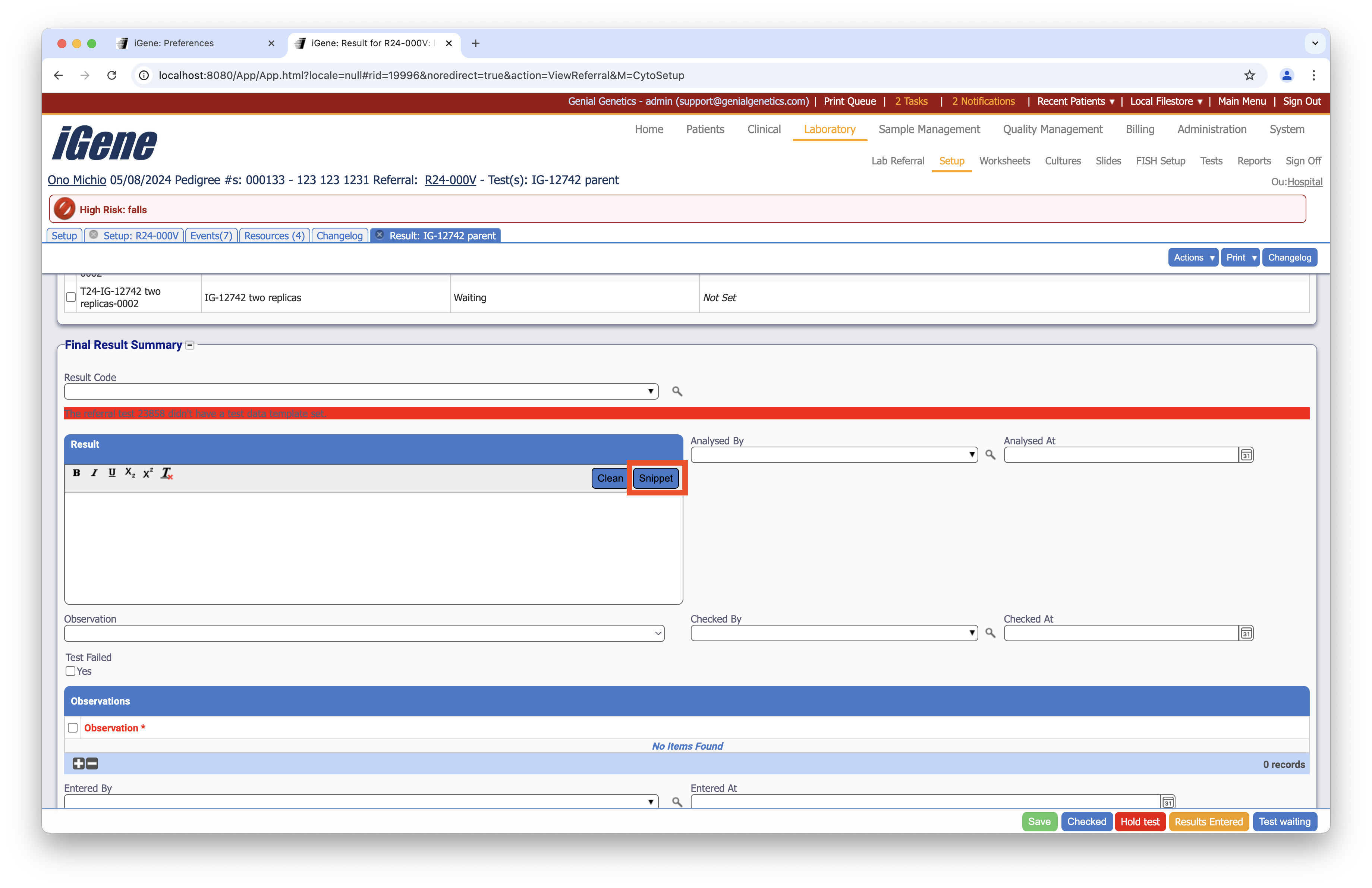
Location
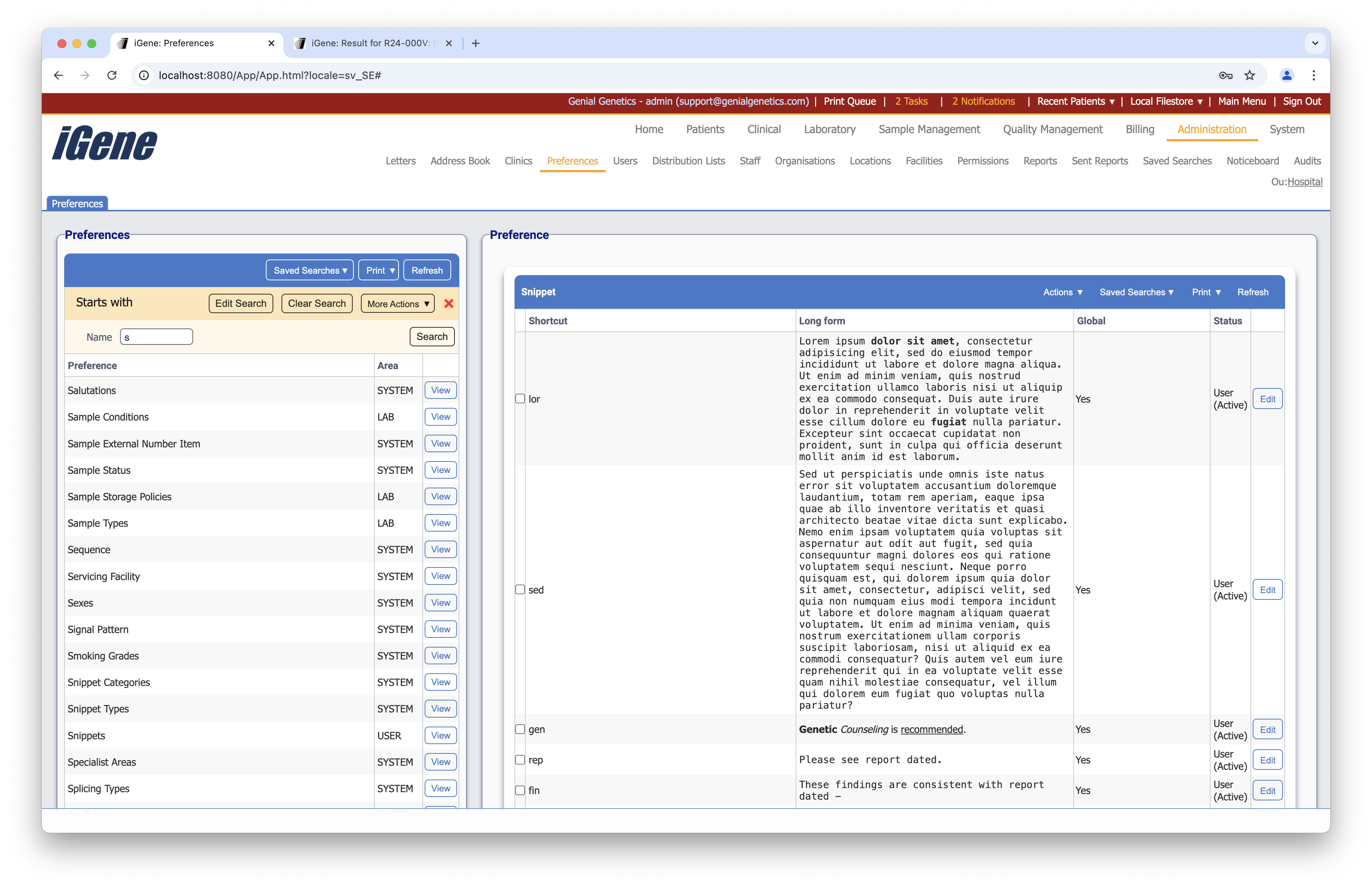
The table of Snippets will display the shortcut, long form,, global availability, and status for the snippet.
Configuration
When adding or editing a snippet, users are presented with the below form to complete. Always press Save in the bottom right-hand corner of the browser after adding or editing a snippet.
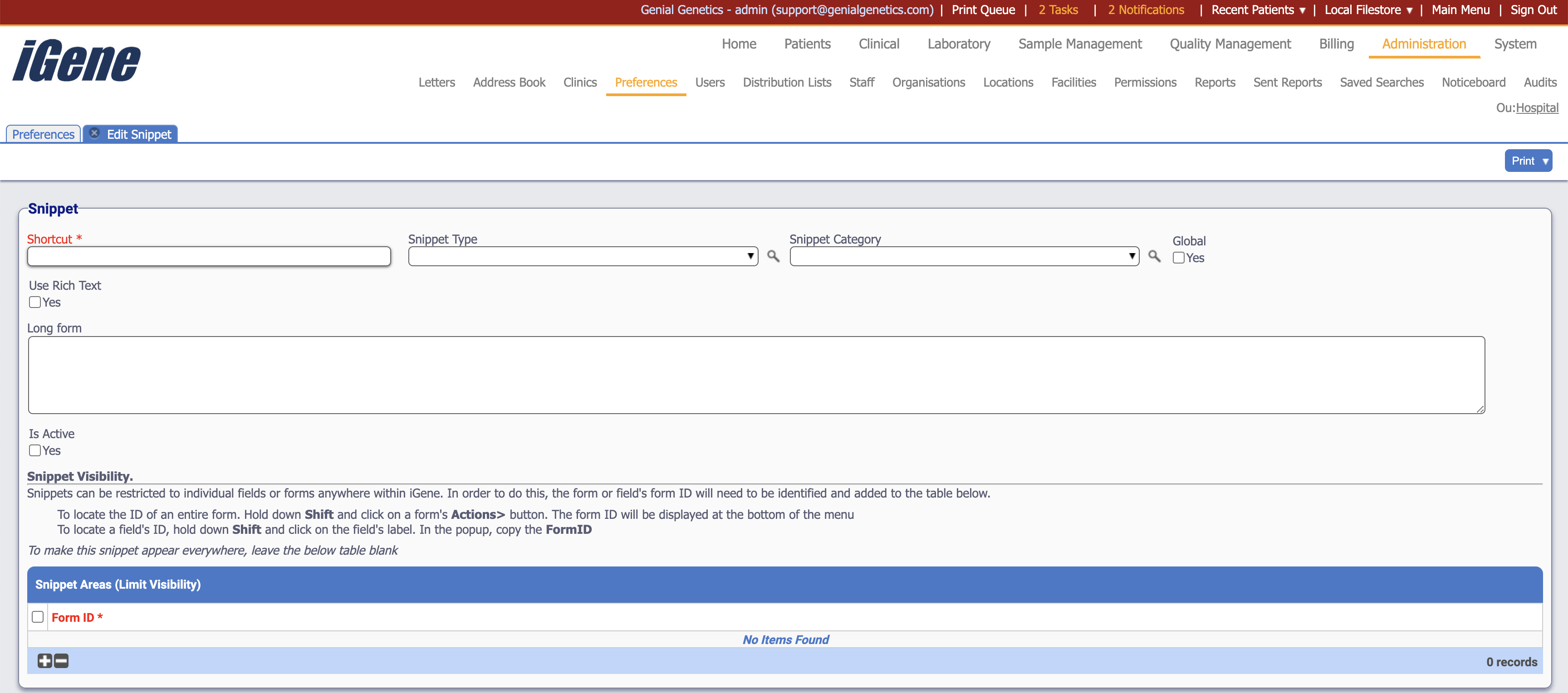
Shortcut (Required, Unique)
A unique code for the snippet. When the shortcut followed be an ellipsis (…) is typed in a snippets-enabled text field, the long form will be displayed.
Snippet Type
A dropdown list of snippet types. This is used to categorise the snippet.
Snippet Category
A dropdown list of snippet categories. This is used to categorise the snippet.
Global
A checkbox to make the snippet available to all users. If the preference is not global, it will only be available to the user who created it.
Use Rich Text
A checkbox to enable rich text formatting for the snippet. This will allow the use of bold, italic, underline, and bullet points.
Long Form
The full text of the snippet. This is what will be displayed when the shortcut followed by an ellipses (…) is typed in a snippets-enabled text field.
Is Active
A checkbox to activate/deactivate an entry. If the preference is not active, it will not be selectable in any drop-down lists.
Snippet Visibility
Snippets can be restricted to individual fields or forms anywhere within iGene. In order to do this, the form or field’s form ID will need to be identified and added to the table below.
To locate the ID of an entire form. Hold down Shift and click on a form’s Actions> button. The form ID will be displayed at the bottom of the menu. To locate a field’s ID, hold down Shift and click on the field’s label. In the popup, copy the FormID. To make this snippet appear everywhere, leave the table blank.