Result Codes
The Result Codes preference is used to record a list of result codes in the system. These are found when adding results to a test. The choice of values are selected using an autocomplete or dropdown list.
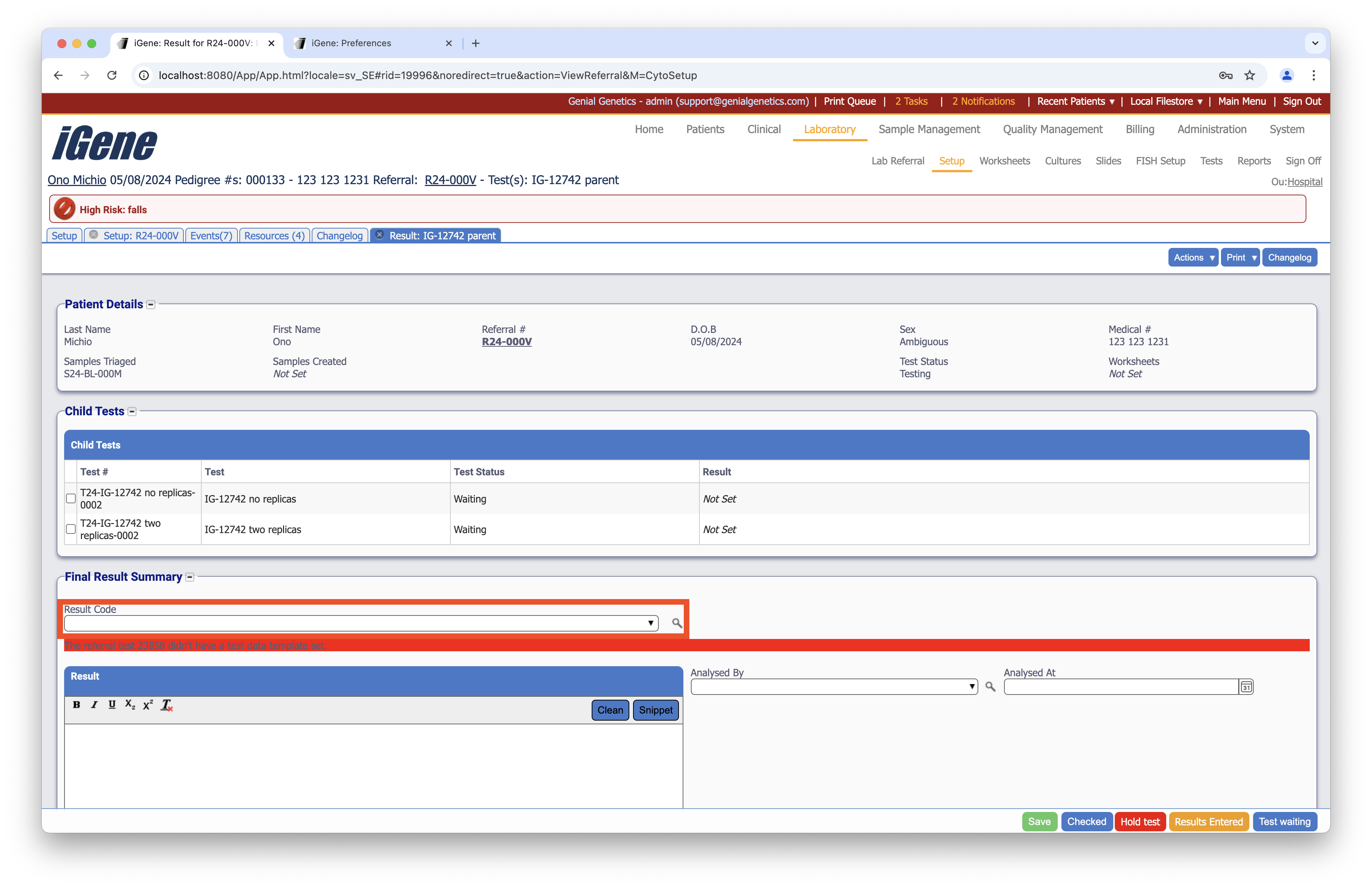
Location
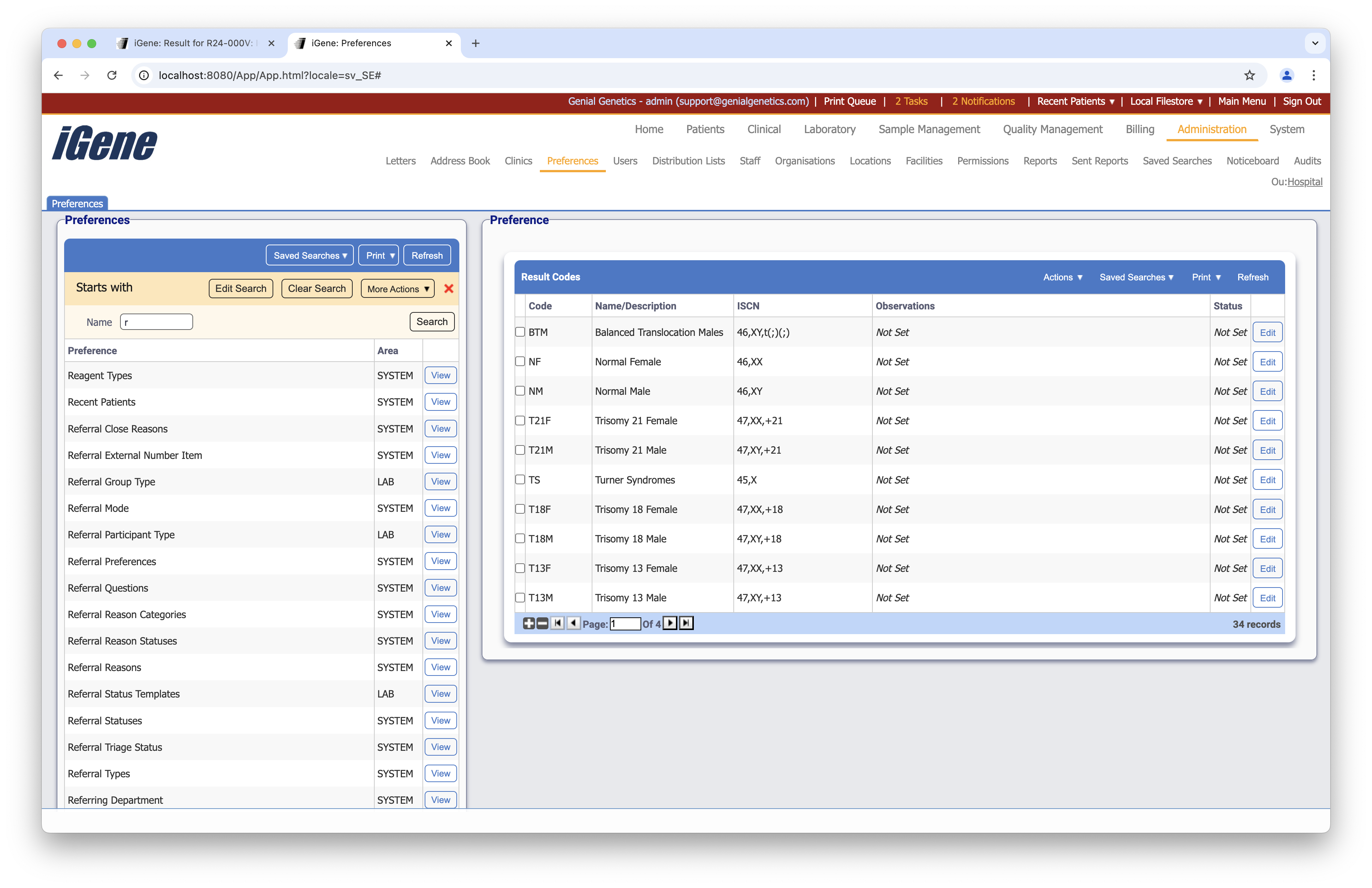
The table of Result Codes will display the code, name/description, ISCN code, observations and status for the result code.
Configuration
When adding or editing a result code, users are presented with the below form to complete. Always press Save in the bottom right-hand corner of the browser after adding or editing a result code.
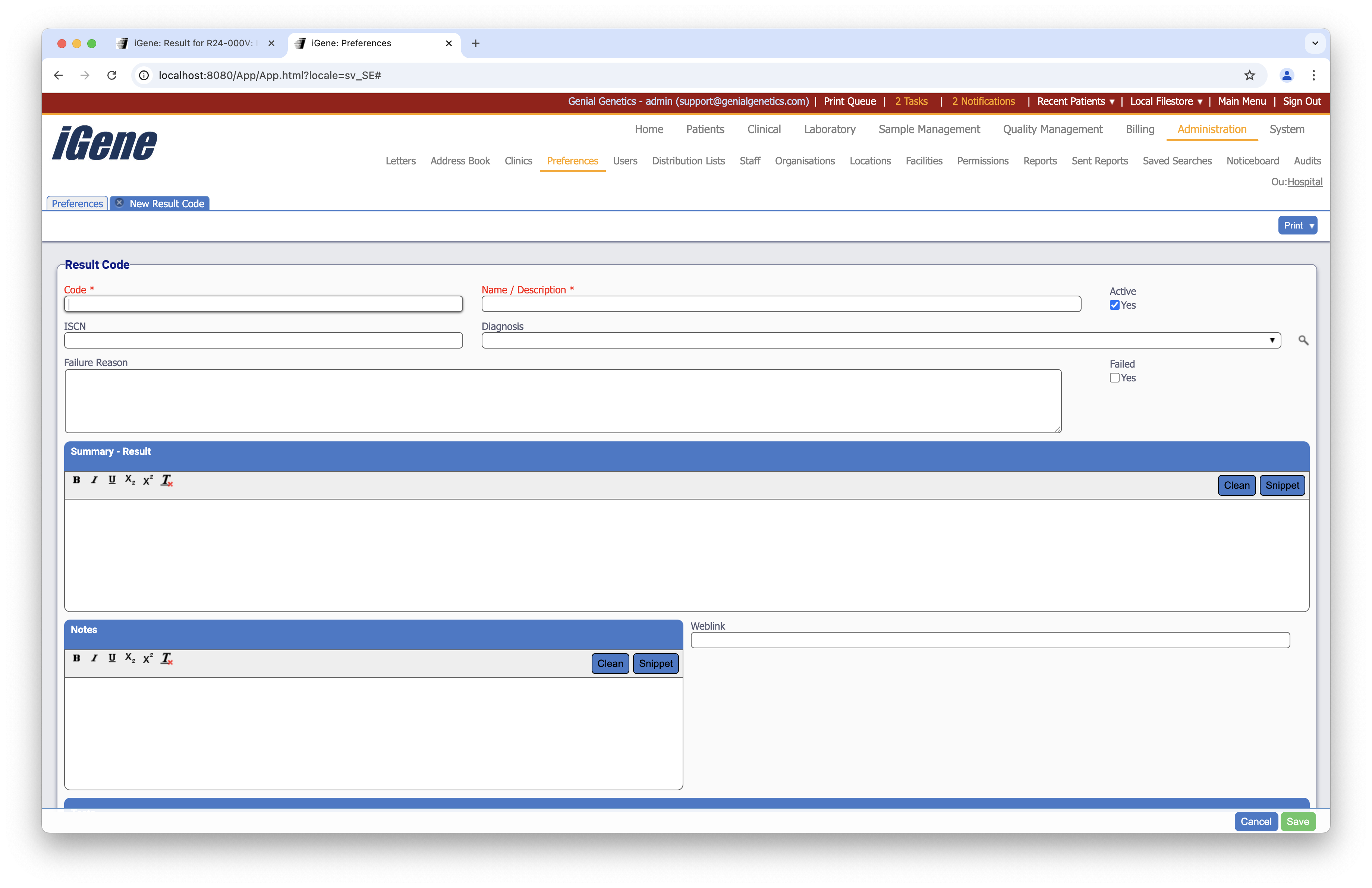
Code (Required, Unique)
A unique code for the result code. This can be the same as the name but must be unique throughout the entire system.
Name/Description (Required)
A name or description for the result code. It is advisable to keep this unique.
Active
A checkbox to activate/deactivate an entry. If the preference is not active, it will not be selectable in any drop-down lists.
ISCN Code
A text field to enter the ISCN code for the result code.
Diagnosis
A drop down to select the diagnosis that will be used in the result code.
Failure Reason
A freetext field to enter the failure reason for the result code.
Failed
A checkbox to indicate if the result code is a failed result.
Summary - Result
A freetext field to enter the summary result for the result code.
Notes
A freetext field to enter any notes for the result code.
Weblink
A text field to enter a weblink for the result code.
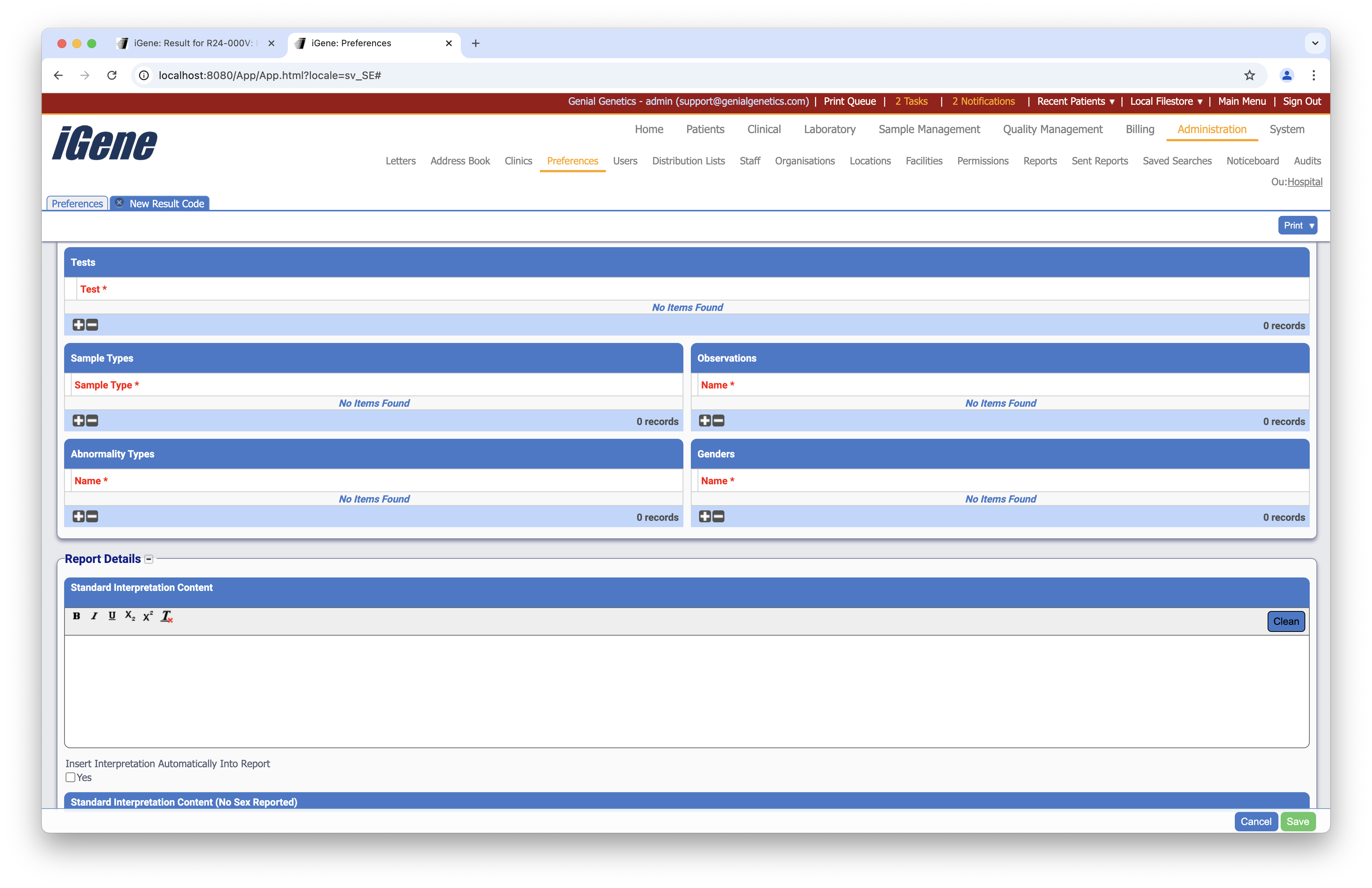
Tests
A table to select the tests that will be used in the result code.
Sample Types
A table to select the sample types that will be used in the result code.
Observations
A table to select the observations that will be used in the result code.
Abnormality Types
A table to select the abnormality types that will be used in the result code.
Genders
A table to select the genders that will be used in the result code.
Report Details
Standard Interpretation Content
A text area to enter the standard interpretation content for the result code.
Insert Interpretation Automatically Into Report
A checkbox to indicate if the interpretation content should be inserted automatically into the report.
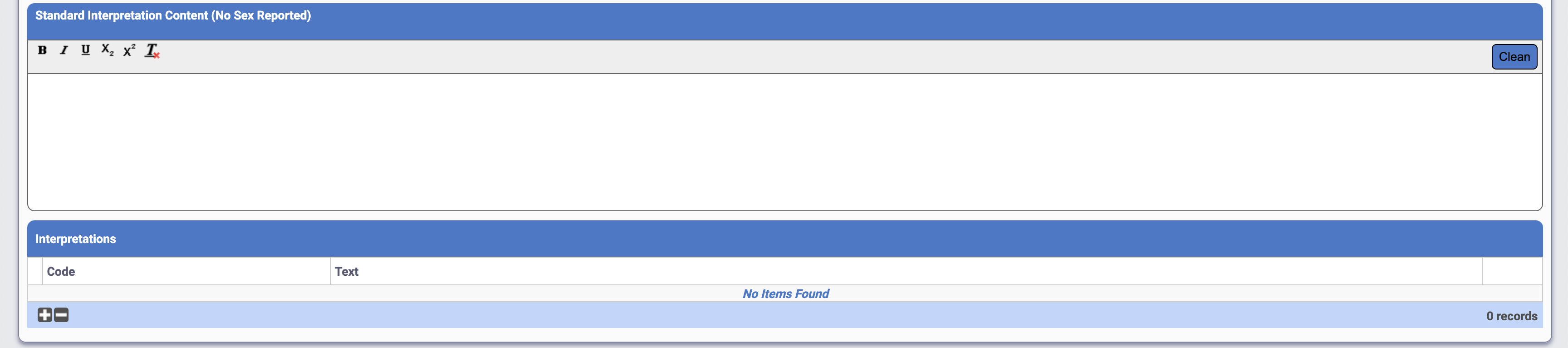
Standard Interpretation Content (No Sex Reported)
A text area to enter the standard interpretation content for the result code when no sex is reported.
Interpretations
A table to select the interpretations that will be used in the result code. Clicking the add button generates a popup window to enter the code and text for the interpretation.