Repeat Schedules
The Repeat Schedules preference is used to record a list of repeat schedules in the system. These are found when navigating to Administration > Clinics, then viewing a clinic. The choice of values are selected using an autocomplete or dropdown list.
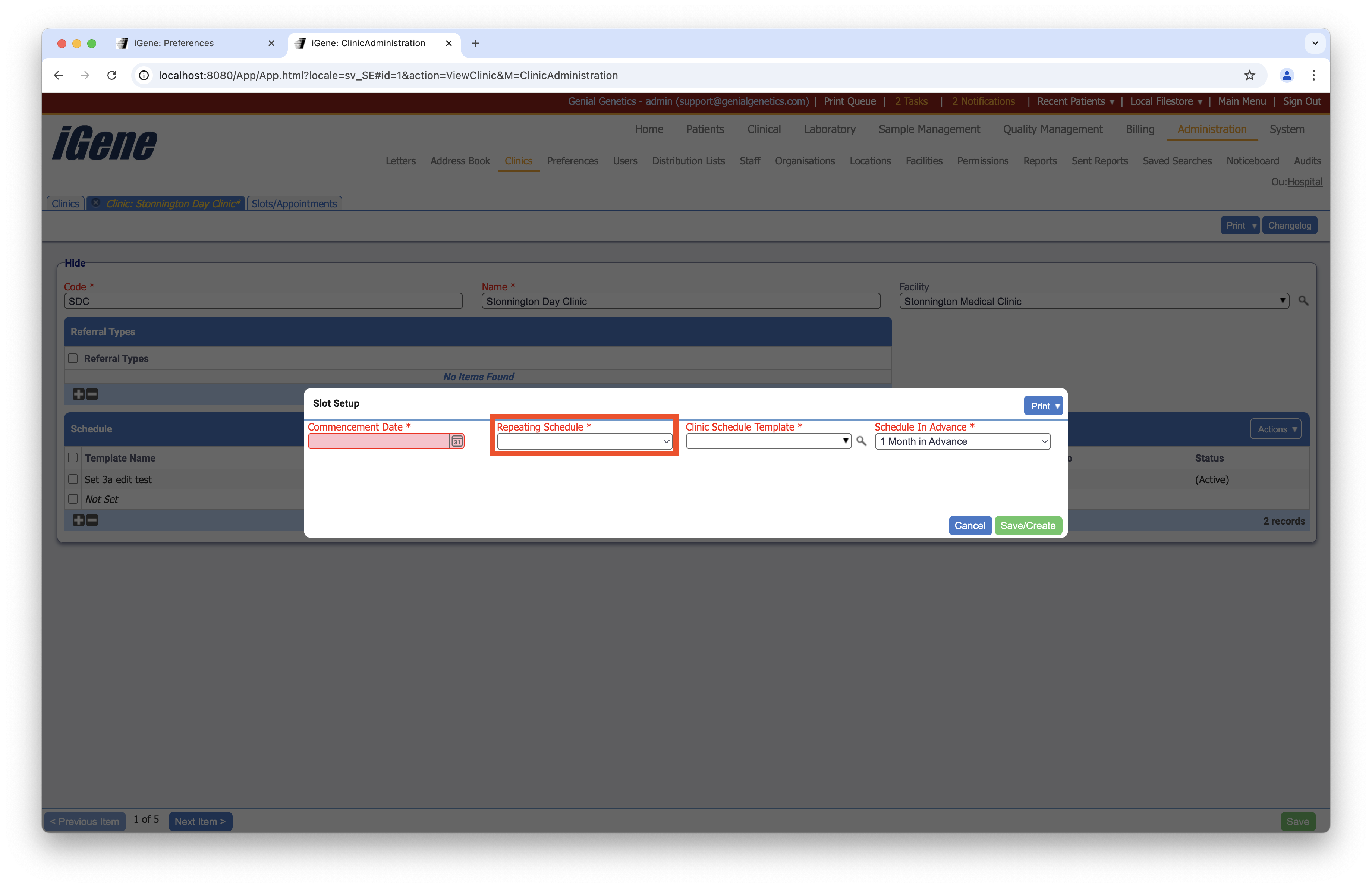
Location
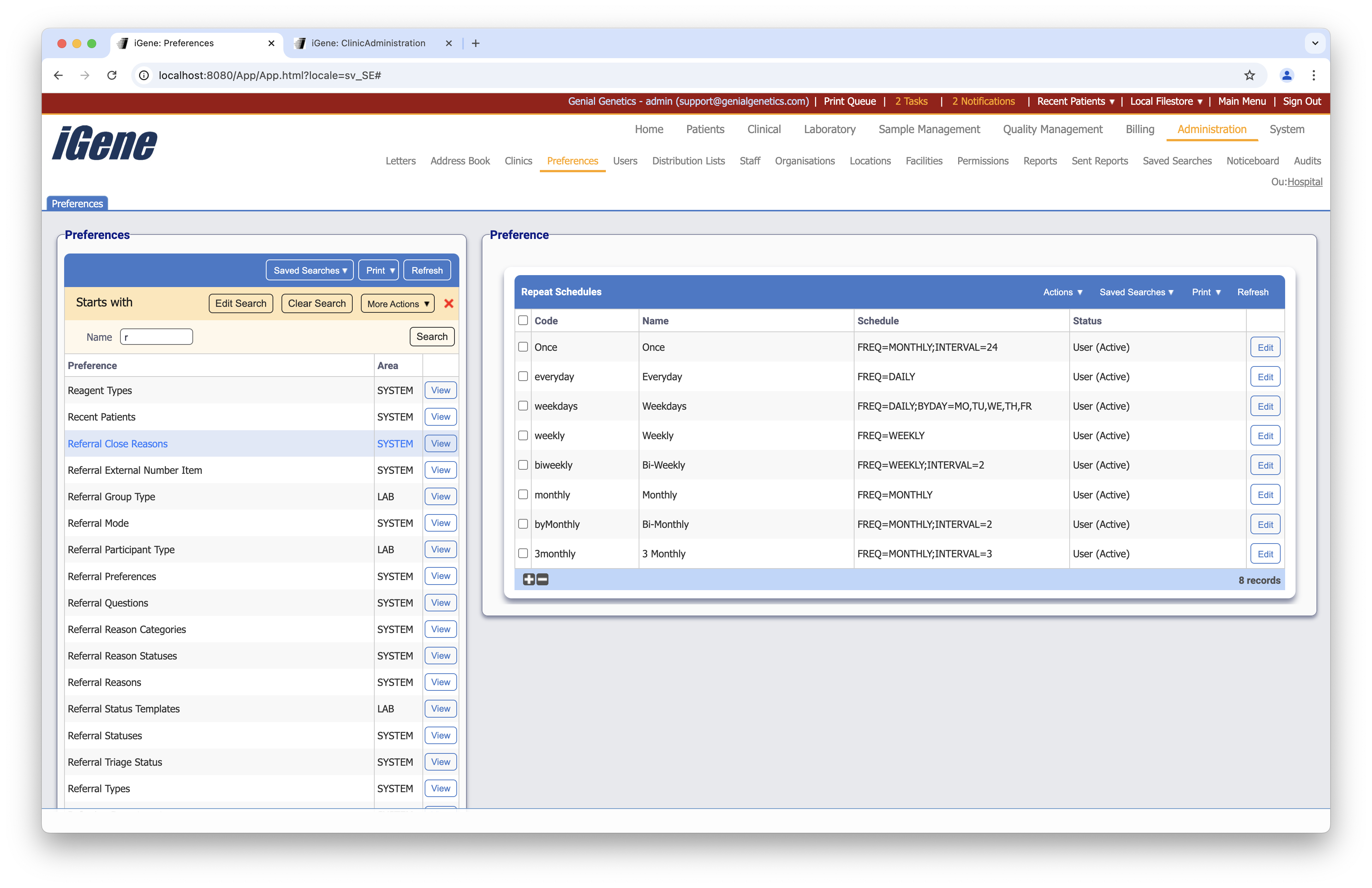
The table of Repeat Schedules will display the code, name, and status for the repeat schedule.
Configuration
When adding or editing a repeat schedule, users are presented with the below form to complete. Always press Save in the bottom right-hand corner of the browser after adding or editing a repeat schedule.
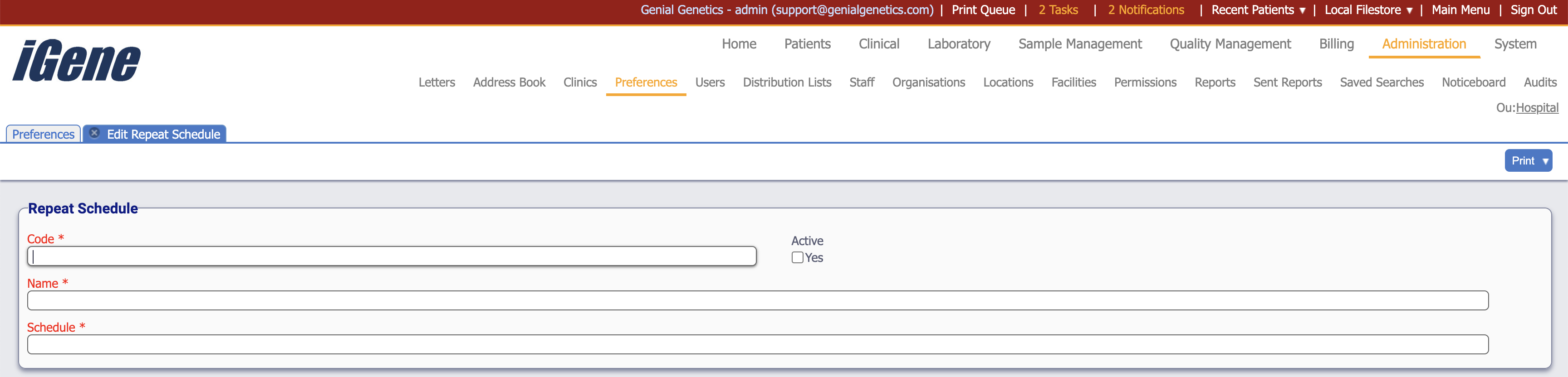
Code (Required, Unique)
A unique code for the repeat schedule. This can be the same as the name but must be unique throughout the entire system.
Active
A checkbox to activate/deactivate an entry. If the preference is not active, it will not be selectable in any drop-down lists.
Name (Required)
A name for the repeat schedule. It is advisable to keep this unique.
Schedule (Required)
The Schedule field defines how often an event or task should repeat, using a recurrence rule that follows the iCalendar (RFC 2445) standard. This allows for highly customizable scheduling options, such as setting events to repeat daily, weekly, monthly, or even yearly.
When configuring the Schedule, you have the option to specify several components:
- Frequency (FREQ): Choose how often the event should repeat. Common options include:
- DAILY: Every day
- WEEKLY: Every week
- MONTHLY: Every month
- YEARLY: Every year
- Interval: How many units of the selected frequency should occur between events. For example, with a frequency of WEEKLY and an interval of 2, the event would repeat every two weeks.
- End Date or Count (UNTIL or COUNT): You can specify when the recurrence should stop:
- UNTIL: Set an exact end date.
- COUNT: Specify the number of times the event should occur before stopping.
- By Day, By Month, By Week: Narrow down when the recurrence should happen by specific days, months, or even weeks of the year. For example:
- BYDAY: Select specific days of the week (e.g., every Monday and Wednesday).
- BYMONTH: Restrict the event to certain months (e.g., every January and July).
- BYMONTHDAY: Select specific days within a month (e.g., the 1st and 15th of every month).
Example
Here’s an example of a custom recurrence rule:
FREQ=WEEKLY;INTERVAL=2;BYDAY=MO,WE
This rule sets the event to repeat every two weeks on Mondays and Wednesdays.
Always review the schedule carefully before saving to ensure it matches your desired recurrence pattern. Once completed, press Save to apply your changes.