Email Report Preferences
The Email Report Preferences preference is used to configure the settings for sending reports by email. This preference is used to set the email address the report is sent from, the email address the report is sent to, the subject of the email, the content of the email, the cron schedule for sending the email, and the delivery type.
Location
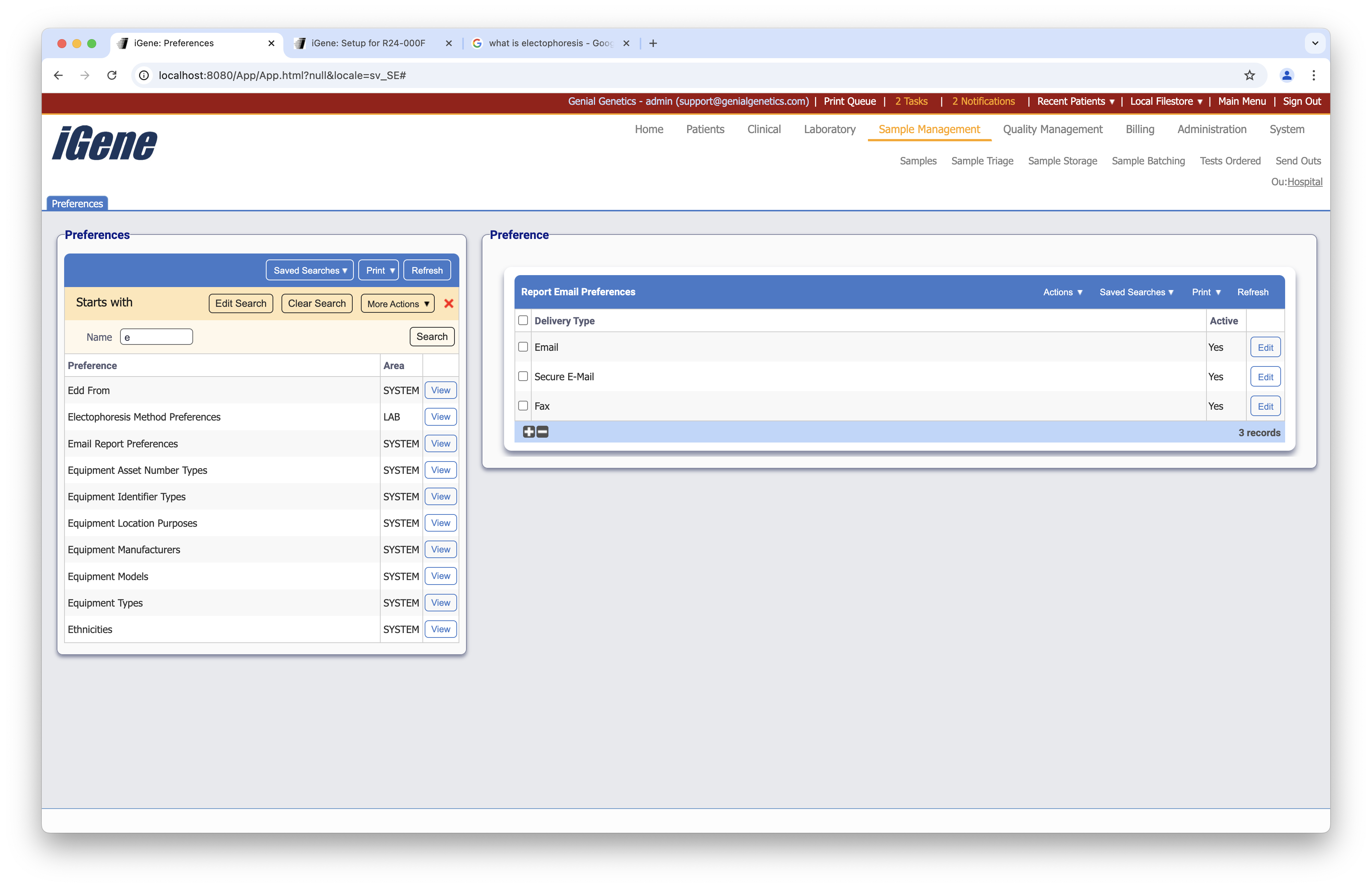
The table of Email Report Preferences will display the mail from, grace period, mail to, email subject, email content, cron schedule for sending, and delivery type.
Configuration
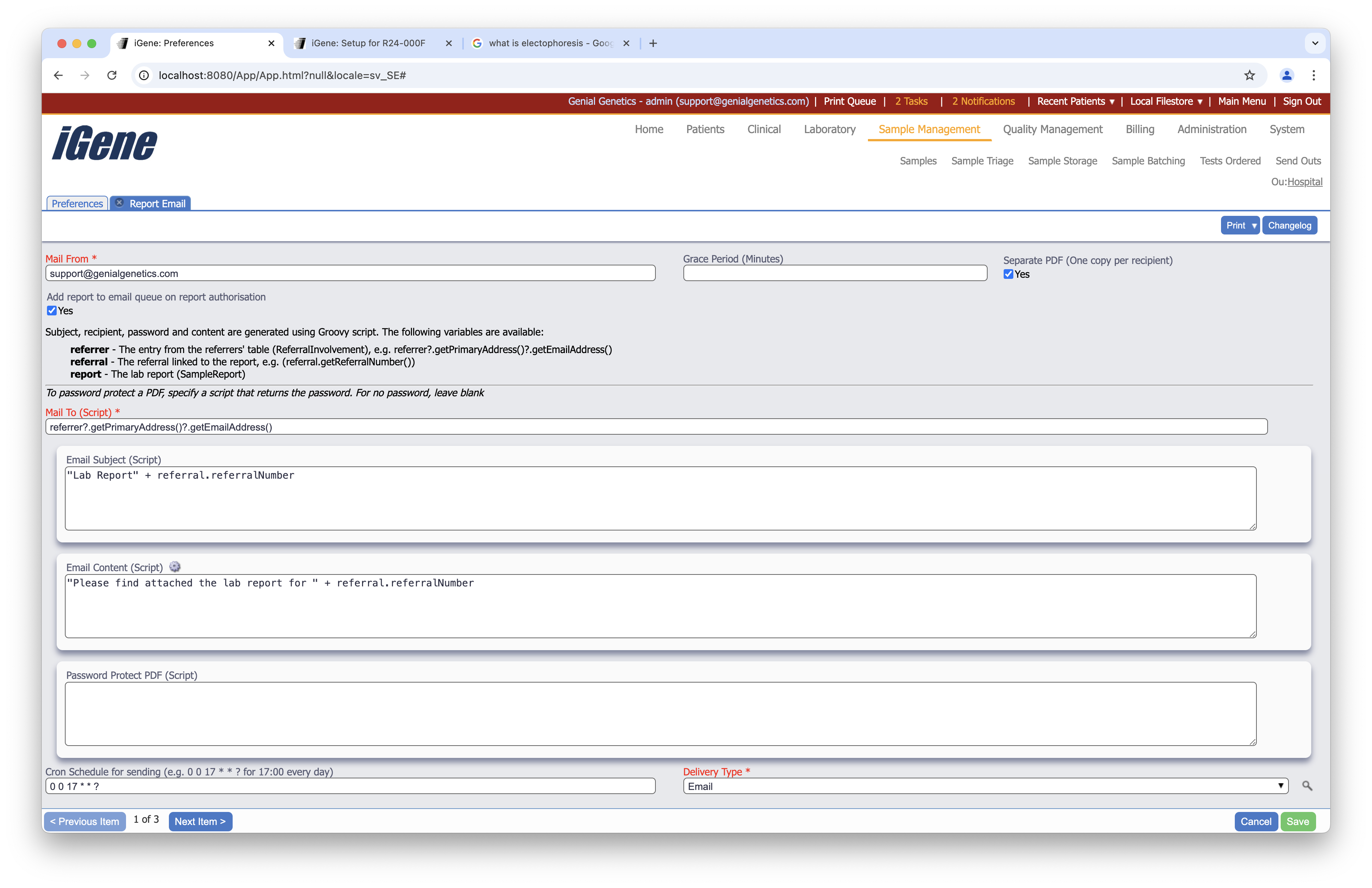
When editing the Email Report Preferences, the following form opens to complete. Always press Save Settings after editing the Email Report Preferences.
Mail From
The received report should show as being sent from this address.
Grace Period (Minutes)
The number of minutes iGene will wait before making the report available to send using the cron schedule.
Separate PDF (One copy per recipent)
If this is ticked, each recipient will receive a separate PDF of the report. If it is not ticked, all recipients will receive the same PDF.
Add report to email queue on report authorisation
If this is ticked, the report will be added to the email queue as soon as it is authorised. If it is not ticked, the report will only be added to the email queue when the cron schedule is run.
Mail To
The report will be sent to the people described in this field.
The example referrer?.getPrimaryAddress()?.getEmailAddress() (groovy script) will ensure the reports are sent to the email address(es) of the primary address associated with named referrers in the referral attached to the report.
The physician(s) must have Receive Report ticked and have the correct Delivery Method selected in the referral.
Note: This is using Groovy, so it is entirely possible to do anything with this item and access any field.
Email Subject (Script)
Text here will show the subject line of the email. It can be plain text or use groovy script to alter the subject for every report / email (recommended).
The example "Lab Report" + referral.referralNumber will give a subject line of Lab Report [referral number here].
Email Content (Script)
The message of the email should be entered here. Again, this can be just plain text but can also feature groovy script.
The example “Please find attached the lab report for ” + referral.referralNumber will produce an email with the content ‘Please find attached the lab report for [referral number here]’.
Password Protect PDF (Script)
This field is used to password protect the PDFs that are sent out. The password can be set to be the same for all PDFs or can be set to be different for each PDF. The password can be set to be the same for all PDFs by entering a string in the field. The password can be set to be different for each PDF by entering a groovy script in the field. The groovy script should return a string that will be used as the password for the PDF. The example "password" will set the password for all PDFs to be ‘password’. The example "password" + referral.referralNumber will set the password for each PDF to be ‘password’ followed by the referral number.
Cron Schedule for sending
The cron schedule can be set to send the reports periodically at fixed times, dates, or intervals.
The example 0 0 18 1/1 */* sends reports in the email queue at 6pm every day but only if they were queued outside of the 5 minute grace period. So, a report sent to the queue at 5.45pm will be sent at 6pm but a report sent to the queue at 5.58pm will not be sent until the next day.
For details on how to set up your own cron schedule, please contact Genial or use an online cron generating tool such as Cron Tab.
Delivery Type
This uses the Report Delivery Types preference.
The option selected in this dropdown, in this example Email, is the Delivery Method (Report Delivery Type) that needs to be assigned to a referring physician (along with having Receive Report ticked) in order for the referring physician(s) to receive a copy of the report by email.