Custom Barcode Actions
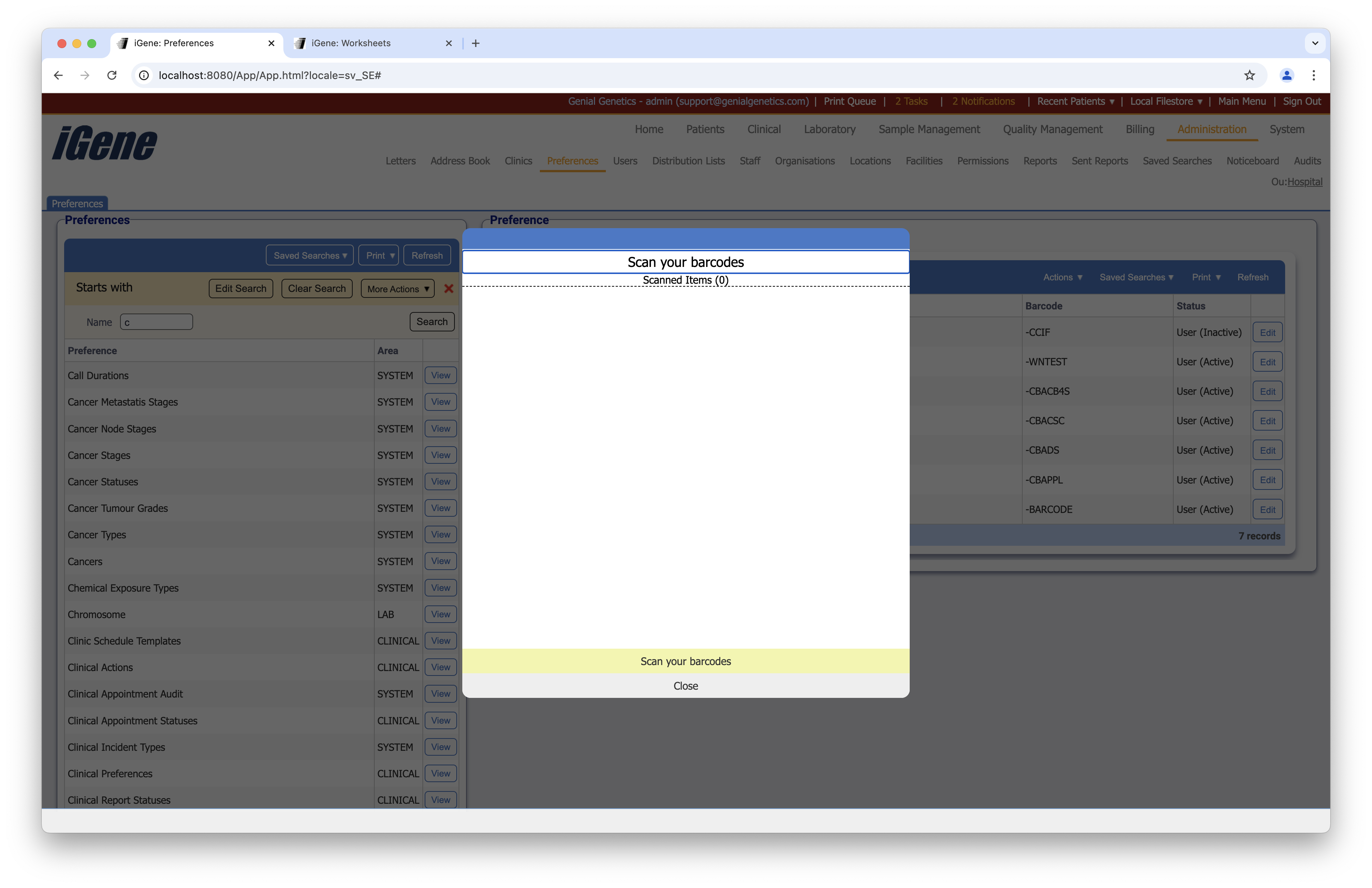
The Custom Barcode Actions preference is used to record a list of custom barcode actions in the system. These are found when scanning a barcode in the system - pressing the “Esc” key twice in quick succession anywhere within the app shows a popup where scanning can be completed. The choice of values are selected using an autocomplete or dropdown list.
Location
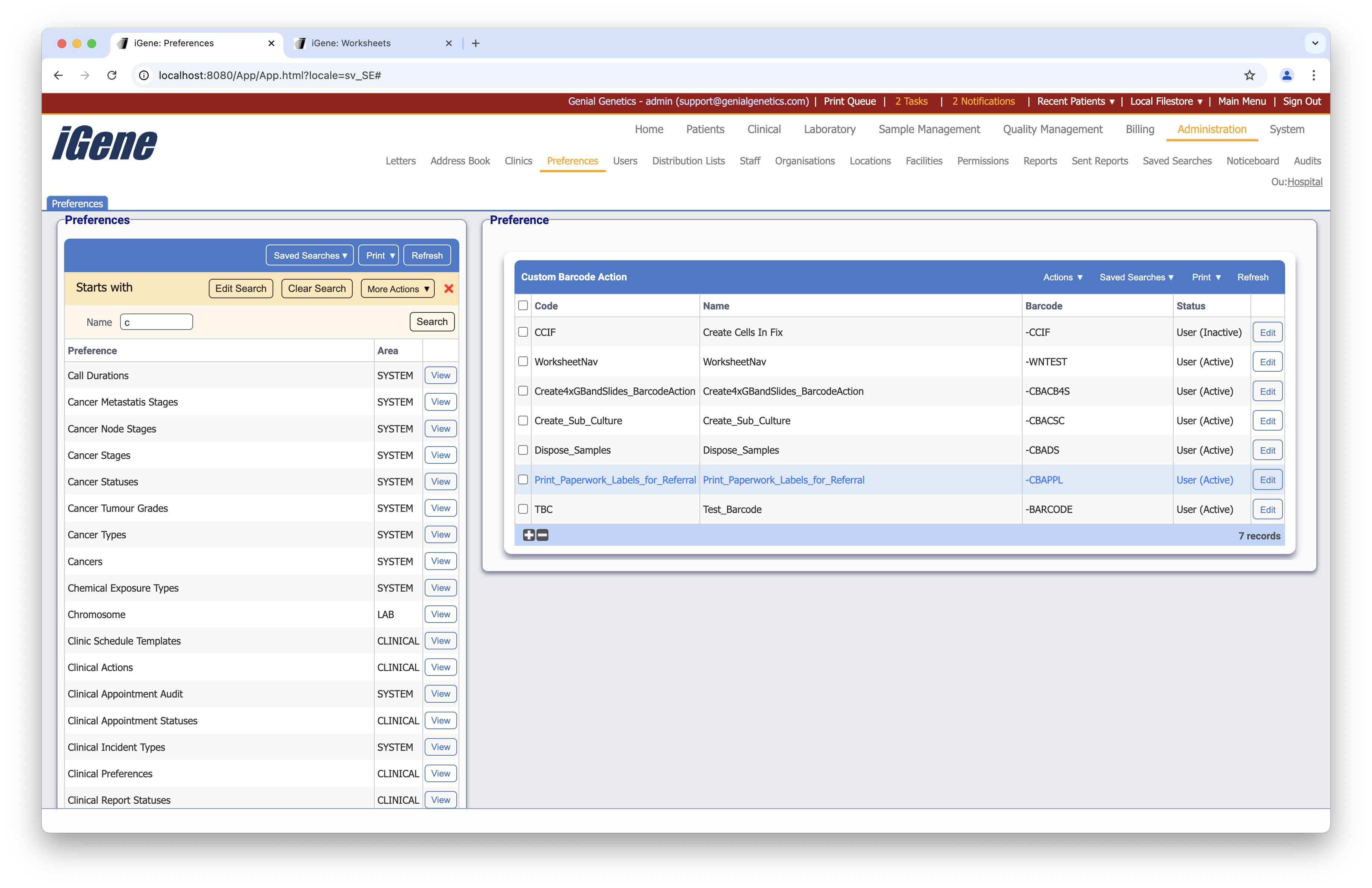
The table of Custom Barcode Actions will display the name, code, barcode, and status for the custom barcode action.
Configuration
When adding or editing a custom barcode action, users are presented with the below form to complete. Always press Save in the bottom right-hand corner of the browser after adding or editing a custom barcode action.
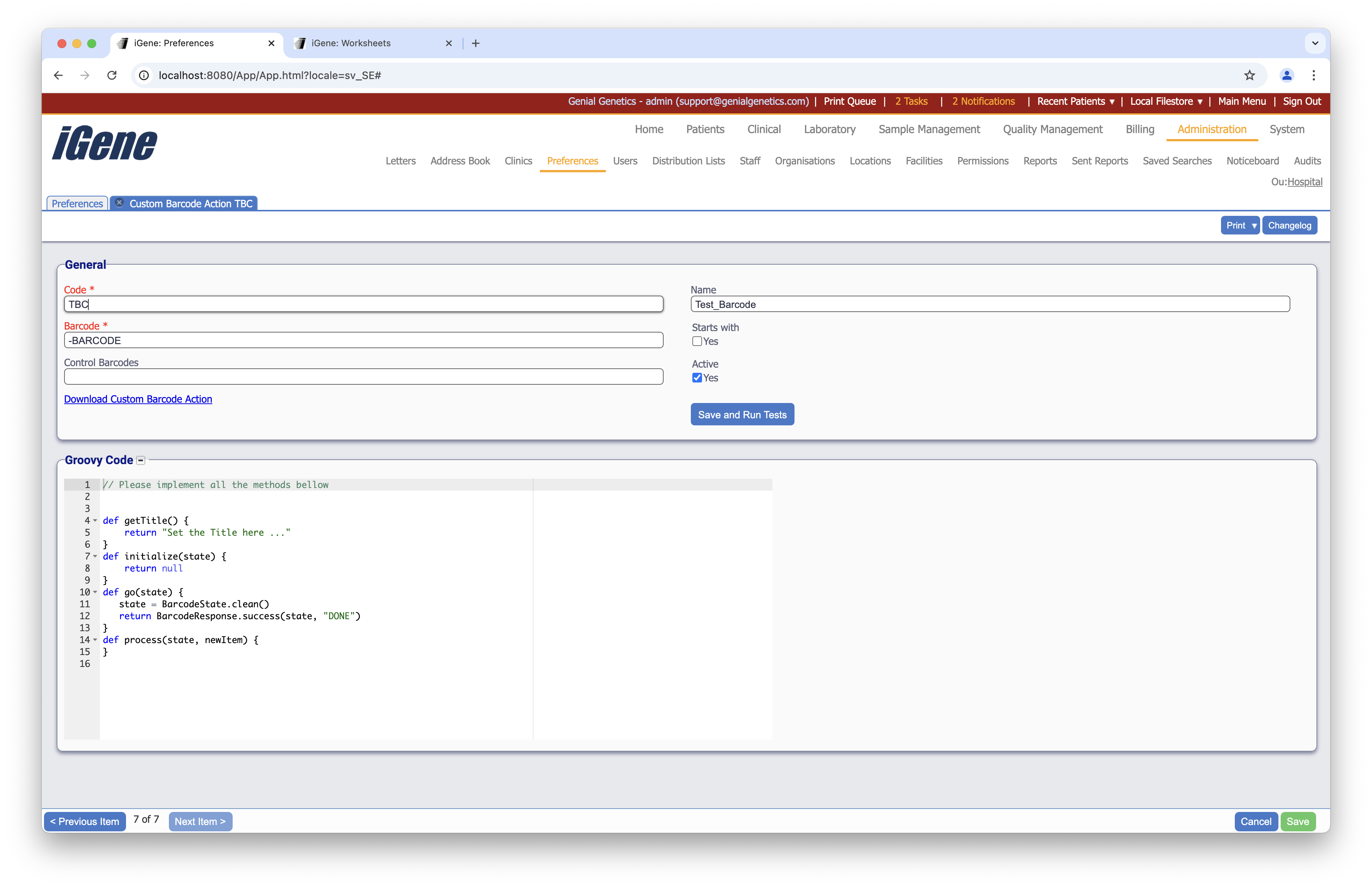
Code (Required, Unique)
A unique code for the custom barcode action. This can be the same as the name but must be unique throughout the entire system.
Name
A name for the custom barcode action. It is advisable to keep this unique.
Barcode (Required)
A barcode for the custom barcode action. This can be scanned in the system to trigger the action.
Starts With
This checkbox determines whether the barcode must start with the value entered in the “Barcode” field. It also enables the use of passing in a parameter. For example, if the barcode is set as “WNTEST|33” and Starts With is checked, then it will load the barcode that starts with WNTEST and pass in the value 33 as a parameter.
Control Barcodes
This textbox allows for the entry of multiple barcodes that can be used to trigger the action. The barcodes should be separated by a comma.
Active
A checkbox to activate/deactivate an entry. If the preference is not active, it will not be selectable in any drop-down lists.
Download Custom Barcode Action
This button allows for the download of a CSV file containing all custom barcode actions in the system. The CSV file will contain the code, name, barcode, and status for each custom barcode action. The CSV file can be opened in a spreadsheet application such as Microsoft Excel or Google Sheets.
Save and Run Tests
This button allows for the saving of the custom barcode action and the running of tests to ensure that the action is working as expected. The tests will check that the barcode triggers the action correctly and that the action is completed successfully.
Groovy Code
This textbox allows for the entry of Groovy code that will be executed when the barcode is scanned. The Groovy code can be used to perform actions such as updating records, sending notifications, or triggering other processes in the system. The Groovy code should be written carefully to ensure that it is secure and performs the desired actions correctly.