Alerts
Alerts are used mainly in the patient area to define alert messages that can be created on a patient. An alert defines a title and alert type for each alert, and whether the alert can contain additional notes.
Alerts are defined globally and are not limited per organisation unit.
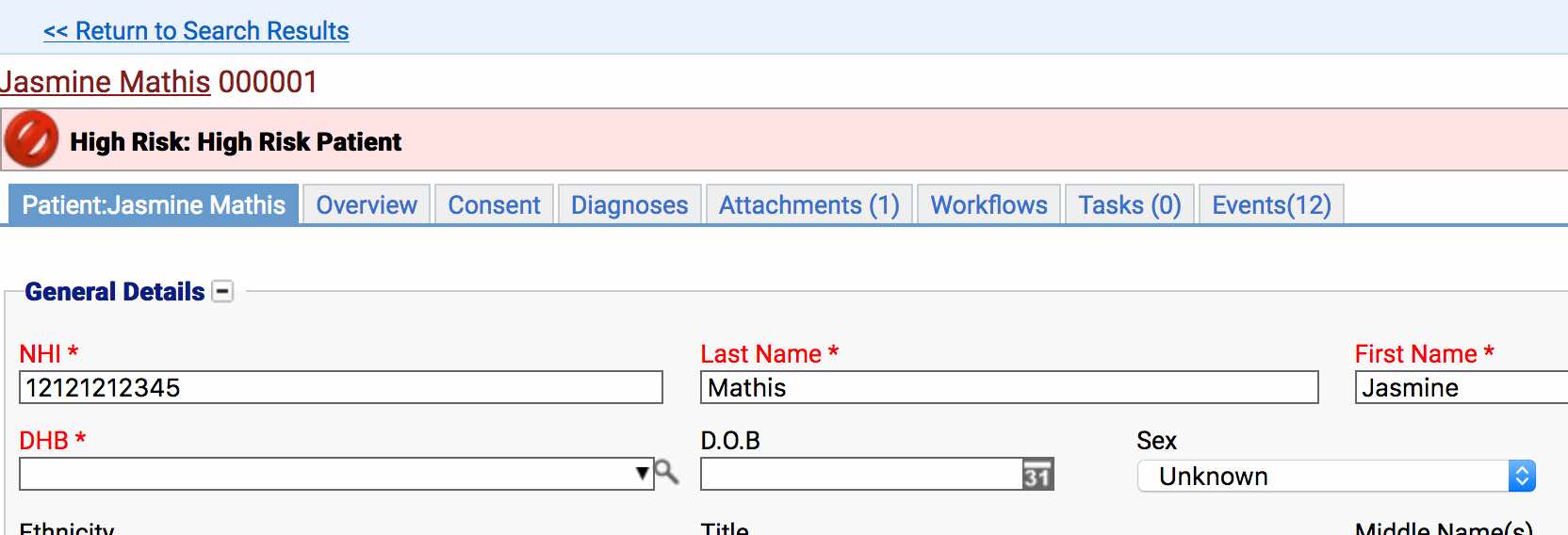
In the above example the text will come from the alert itself, while the colour and icon are set in the alert types.
Location
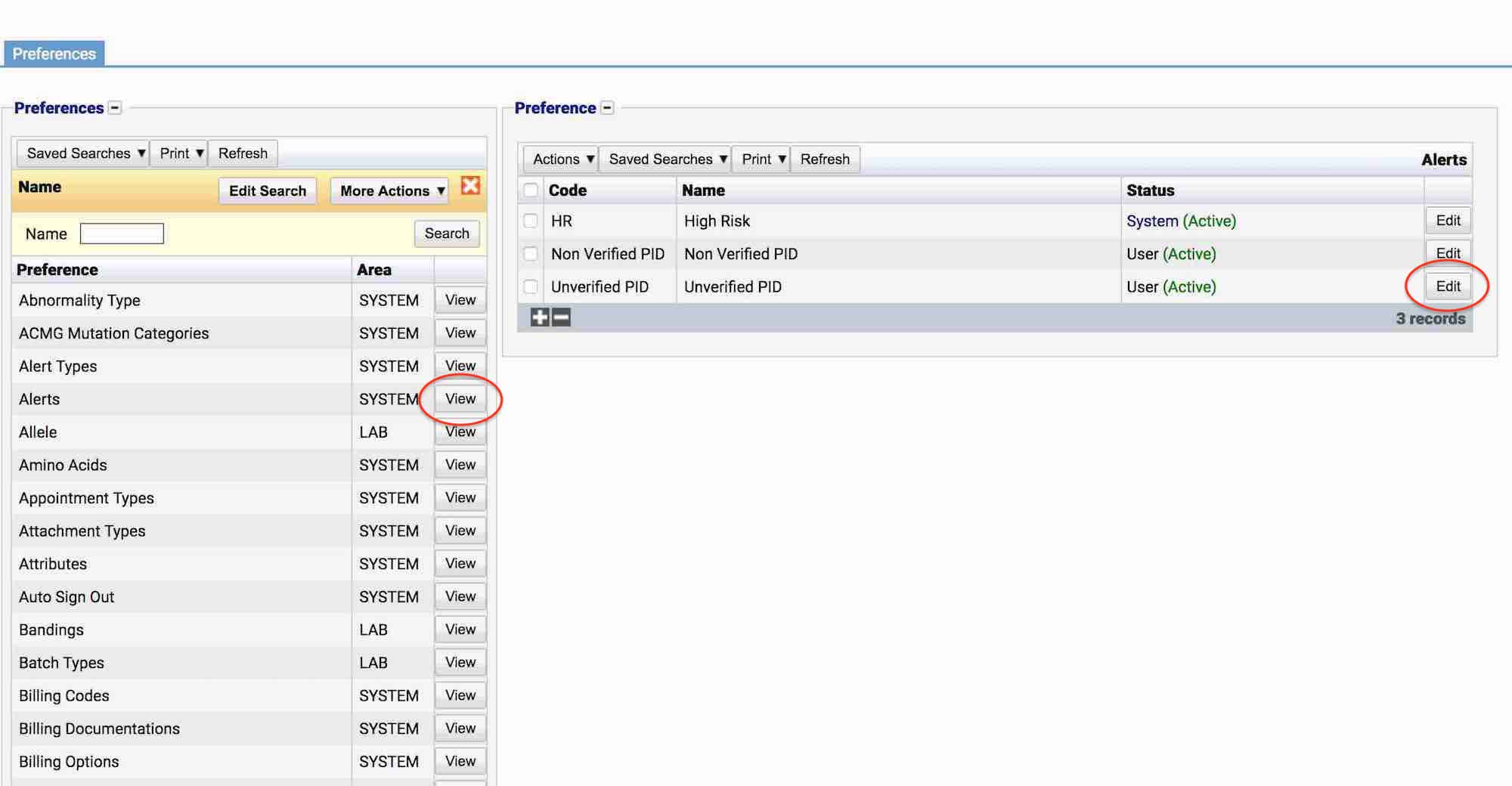
The Alerts table will display the code, name and status for the alert.
Configuration
When adding or editing an alert, users are presented with the below form.
Always press Save in the bottom right hand corner of the browser after adding or editing an Alert.
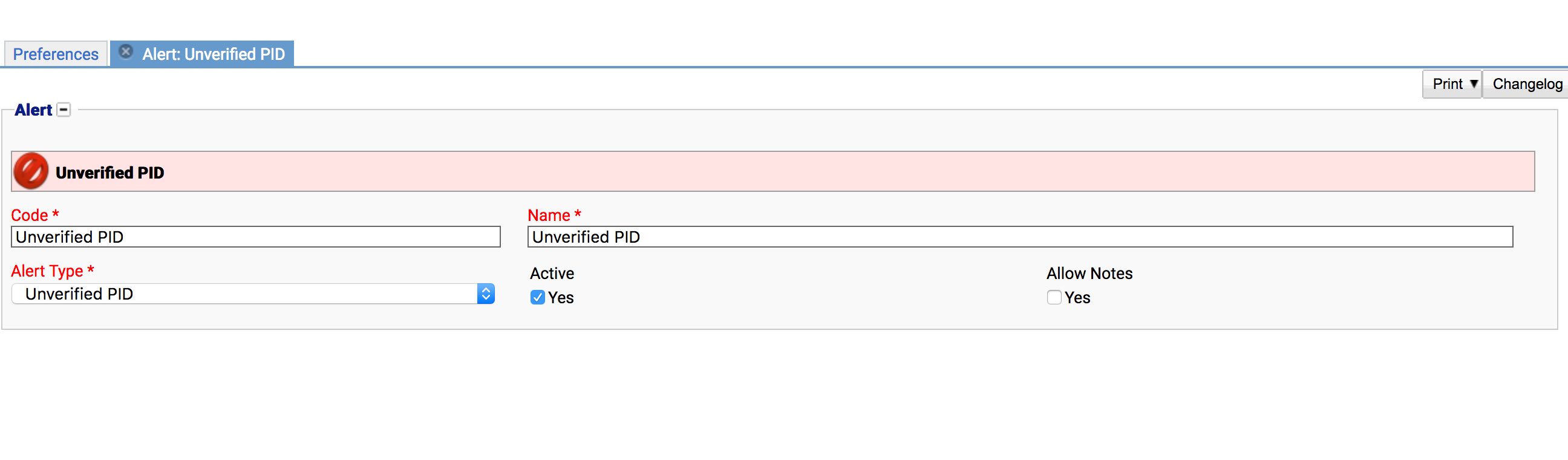
Code (Required, Unique)
A unique code for the alert. This can be the same as the name but must be unique throughout the entire system.
Name (Required)
A name for the preference. It is advisable to keep this unique.
Alert Type (Required)
The alert type used for this alert. The alert type decides which colour and icon the alert will display. See alert types.
Active
A checkbox to activate / deactivate an entry. If the preference is not active, it will not be able to be selected for future result but it will still show for existing results.
Allow Notes
The allow notes checkbox indicates whether users who add this alert to a patient can add their own additional notes/text to the alert.
- The below image indicates that notes have been disabled, the notes box is greyed out so cannot be edited when adding the alert to a patient.
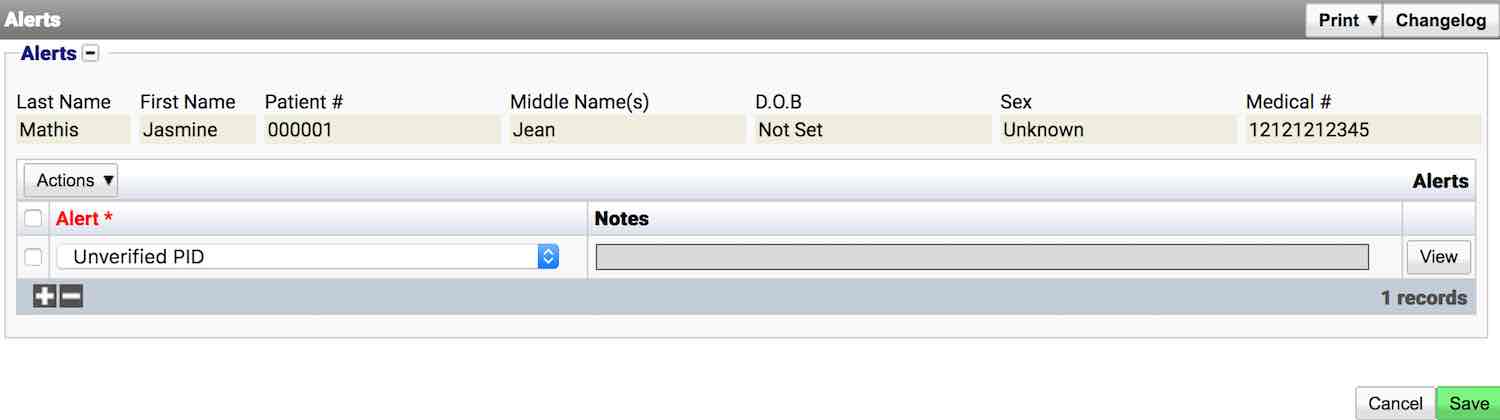
- If enabled, an added note is displayed next to the alert.
Here, the note ‘High Risk Patient’ is showing next to the ‘High Risk’ alert in the patient header.

Usage
The Alert preference is used with the following items: